On a phone or an upright tablet, each person chooses how they move around GenieCRM™: the Sidebar, opened from the button at the top left, or the Bottom bar, which puts your main places along the bottom of the screen within reach of a thumb. Computers and tablets held sideways always show the sidebar.
The bottom bar works in any phone or tablet browser. Installing GenieCRM™ on your home screen is not needed for it. The choice is saved to each person's account, so it follows them between devices, and the sidebar is what everyone starts with.
Choosing the bottom bar
Tap your picture at the top right to open My Account. With the bottom bar on, it opens as a sheet from the bottom of the screen.
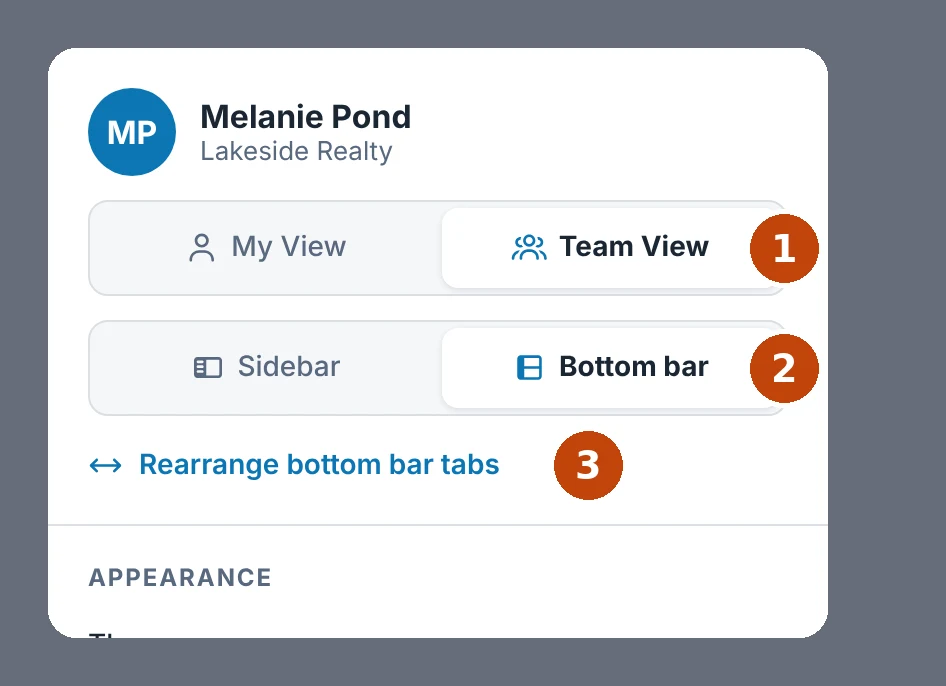
- My View / Team View — whose records you see.
- Sidebar / Bottom bar — how you get around.
- Rearrange bottom bar tabs — put the tabs in your own order.
The bottom bar
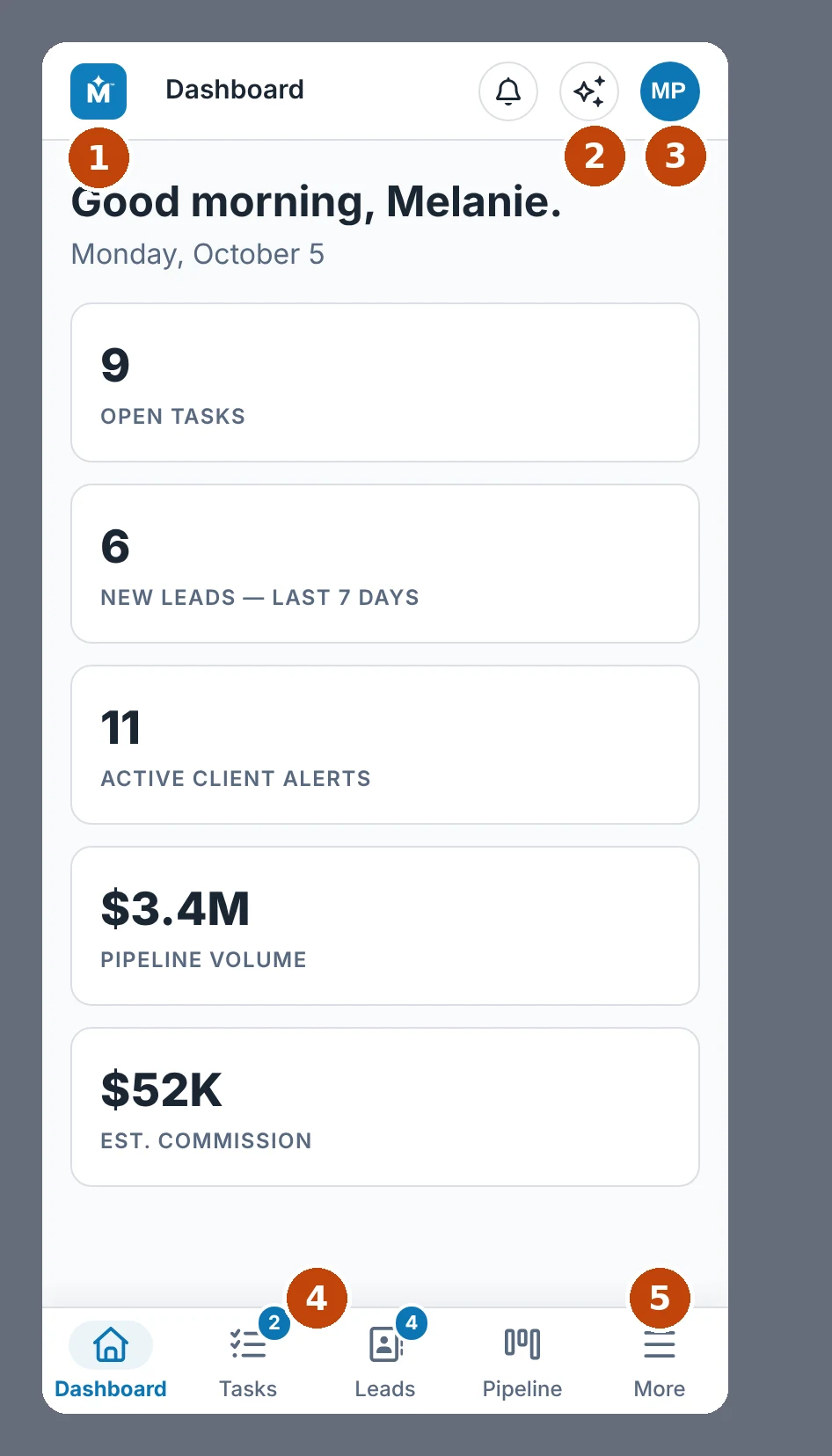
- The MLS Genie icon — tap it to go to the Dashboard.
- Ask Genie — the sparkles button.
- Your picture — opens My Account.
- Your four tabs, with counts for anything waiting.
- More — everything else in the menu.
More
More opens the rest of the menu as its own page, with each section listed under its heading and your account manager at the bottom. Places already on the bar are not listed twice.
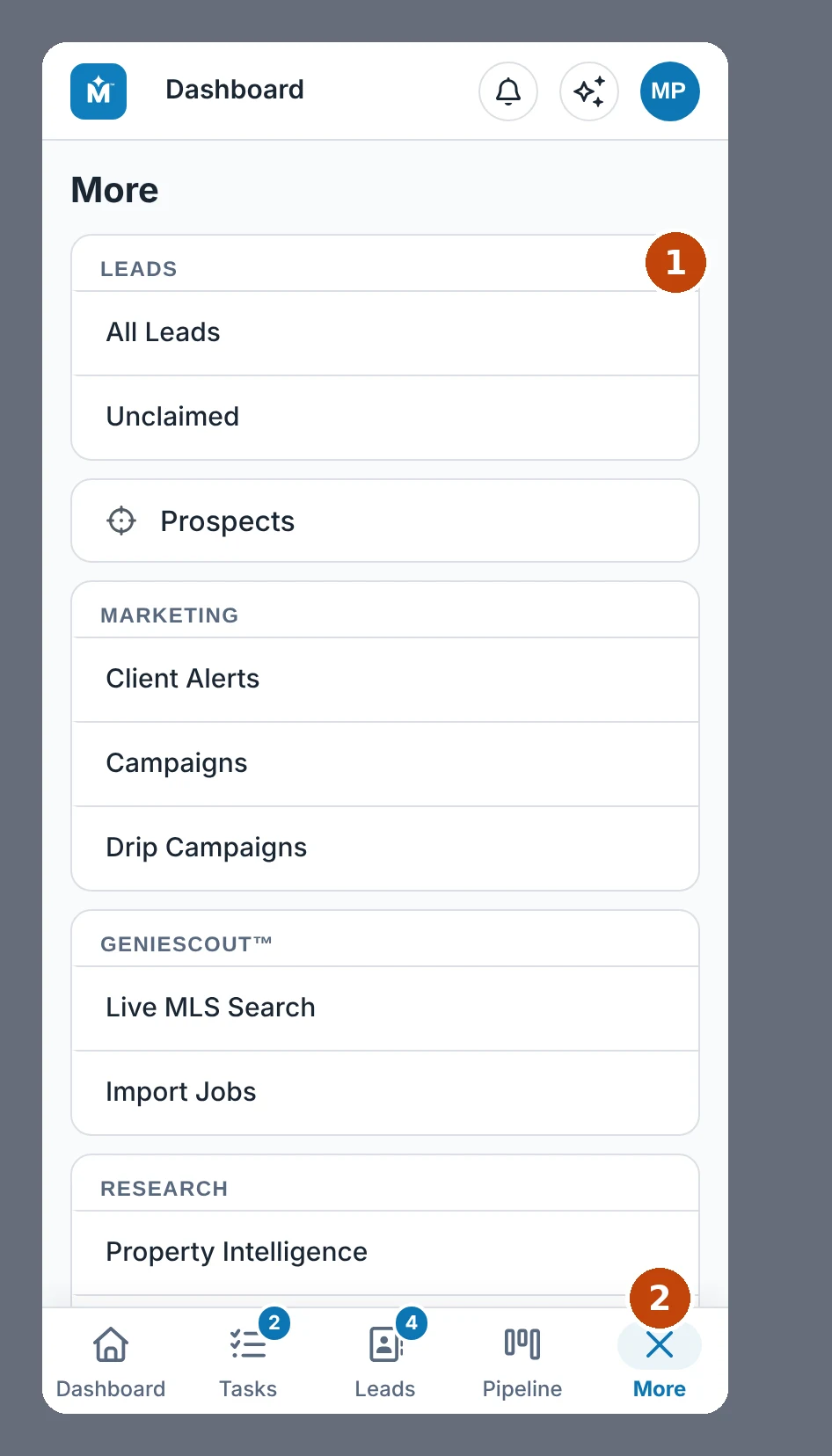
- Each section of the menu, listed in full.
- More turns into an X while the page is open; tap it to close the page.
Rearranging the tabs
Press and hold any tab until the tabs wobble, drag them where you want them, then tap Done. Rearrange bottom bar tabs in My Account does the same, and the arrow keys move a tab from a keyboard. More always stays at the far right.
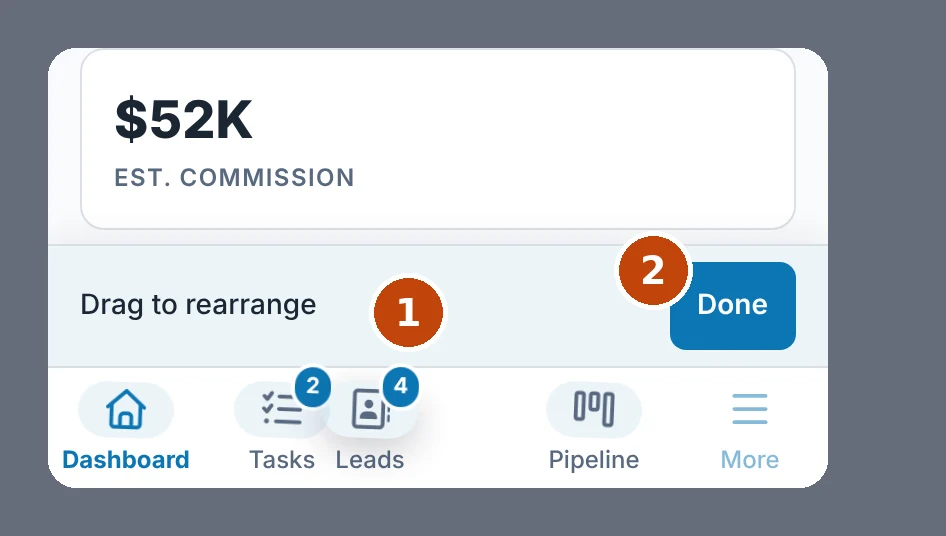
- Drag a tab to its new place; the others move aside.
- Done — your order is saved.