Adding a lead manually
Navigate to Leads in the left navigation, then click the + Add Lead button in the top right. Fill in the contact details — at minimum a name or an email address — and click Add Lead. Everything else, Timeline included, can be filled in later. The lead lands in the pipeline as a New Lead.
Start typing a Mailing address and choose one of the suggestions: the street stays in the address box and City, State and ZIP fill themselves in. Whenever a mailing address is entered, City, State and ZIP are needed before the lead saves. Edit Lead works the same way.
Choosing a Type shows the fields that go with it: a buyer gets first-time buyer, budget and pre-approval; a seller gets the properties they are selling, at least one required; a contact who is buying and selling gets both. Pick any number of Tags under the assigned agent — type a name that is not on the list yet and choose Add to create it, if your team lets you create tags. Edit Lead is laid out the same way.
Recording marketing consent
At the end of the form, the Marketing Consent box records whether the lead agreed to receive email. Tick it only if they agreed, then add a short note on how they gave it — for example, "Agreed on the phone." Consent recorded here is in place before the first email goes out, so nothing has to be remembered later.
Text consent has to come from the client in writing — a website form, their own account, or a consent request — so agents cannot tick SMS opt-in. If a client agrees on the phone, open their lead and use Ask for consent to send them a link. A manager can tick it to record a documented exception, such as a signed paper form, and must say why and where the agreement is kept; the consent history marks it as a manager override.
Any team member who can edit a lead can update its email consent afterwards from the Edit Lead drawer, and anyone can turn either channel off. Every change — opt-in or opt-out — is saved with the name of the person who made it, the date and time, and their note, and appears in the lead's consent history. A spreadsheet import applies a text opt-in column only when a manager runs it.
Importing leads from CSV
Click the import button (down arrow icon) in the Leads toolbar. Download the CSV template, fill in your contacts, and upload the completed file. The importer maps columns to lead fields automatically. Review the preview before confirming.
Supported import sources include Follow Up Boss, LionDesk, CINC, BoomTown, and any platform that exports standard CSV.
Lead fields
Every lead record supports: first name, last name, email, phone, source, status, assigned agent, tags, notes, and custom fields. The activity log on each lead record captures every touchpoint automatically.
Who referred the lead
When another agent, a lender or anyone else sent you the lead, choose them under Referred by on Add Lead or Edit Lead. The list holds the people in Contacts, referring agents first. The lead page then shows Referred by with a link to that contact, and the contact's page lists the lead under Leads Referred.
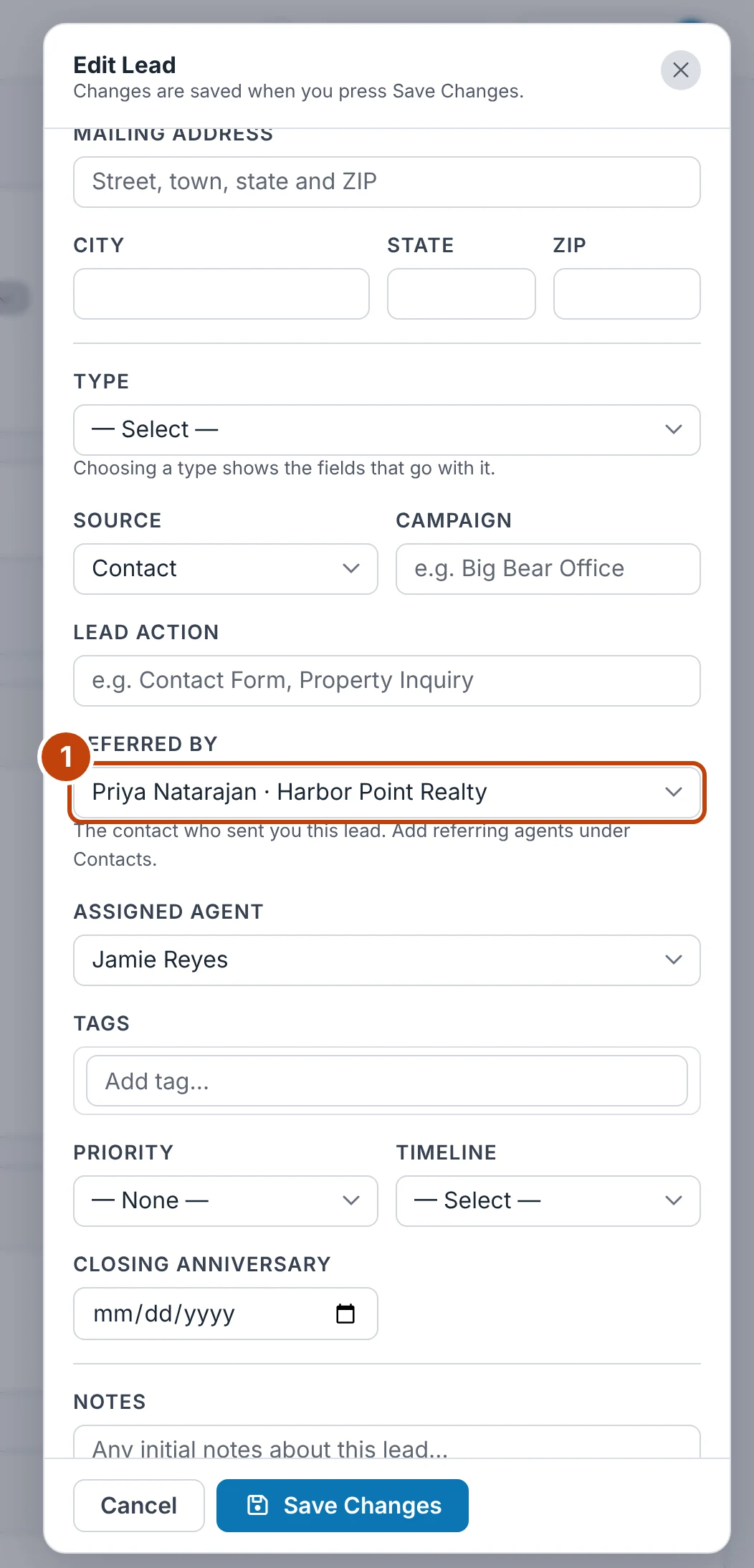
- Referred by — the contact who sent you this lead. Choose — Nobody — to clear it.
Searching and filtering
Use the search bar at the top of the Leads page to find contacts by name, email, or phone. Use the filter panel (slider icon) to filter by status, source, assigned agent, or date added.

