What Contacts is for
Referring agents, title officers, lenders, inspectors, appraisers, property managers, contractors, photographers and attorneys are not buying or selling, so they do not belong in your leads. Contacts keeps them in one directory that sits outside the funnel: no pipeline stage, no lead score, no unanswered-lead reminders, no drip campaigns, and they never count in your conversion figures.
Open Contacts in the left navigation, just below Prospects.
The Contacts list
The list works like the Leads list. Search by name, company, email or phone; filter by category or owner — My contacts, The team, or any agent; sort by any column with an arrow; tick rows to archive several at once. The cards along the top count your referring agents, the leads they have sent you in the last 90 days, and the contacts added in the last 30 days.
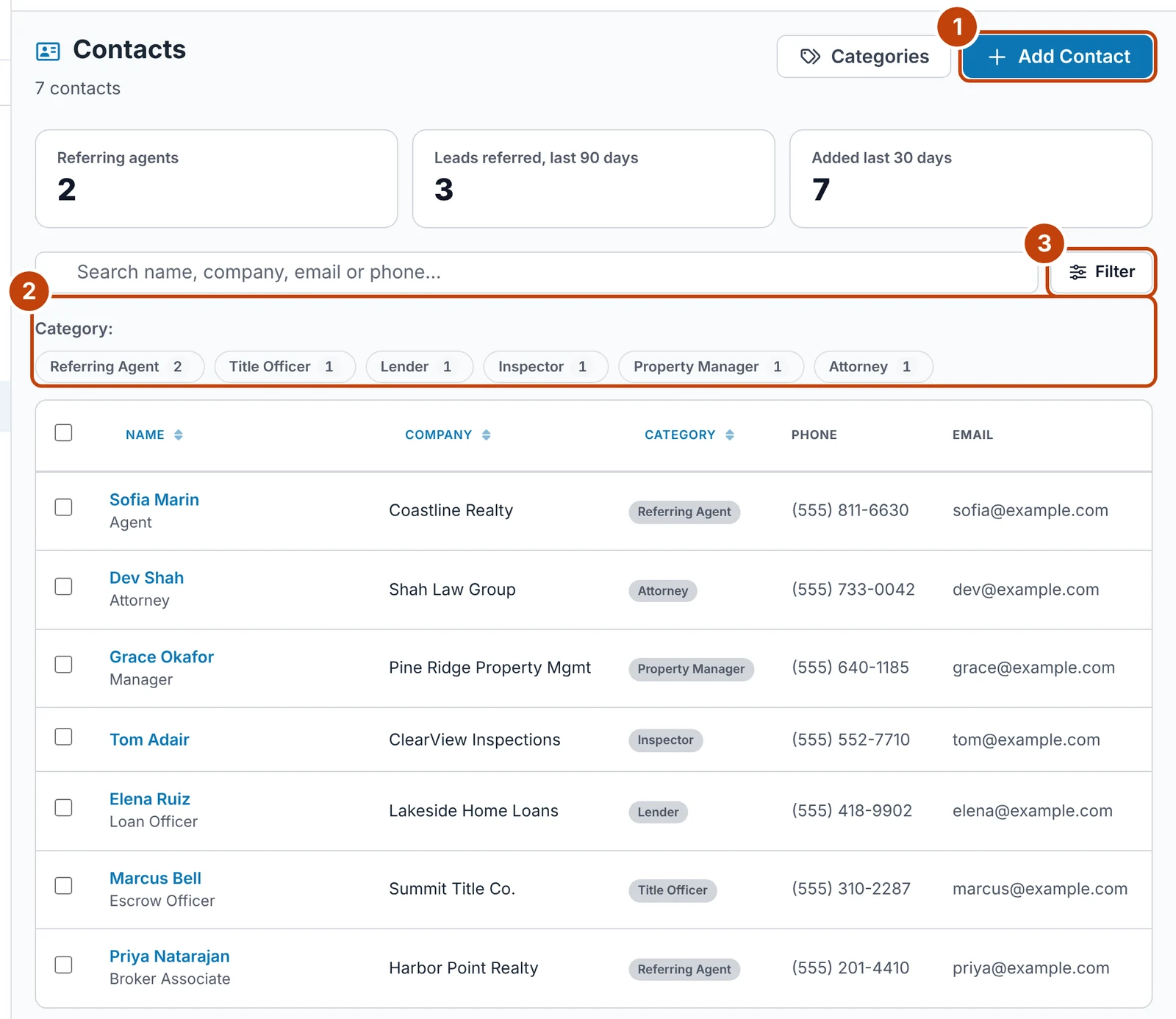
- Add Contact opens the form in a side drawer.
- Category chips — click one to show only that kind of contact, and again to clear it. Each shows how many there are.
- Filter — category, owner and tag.
Adding a contact
Click + Add Contact. A name, a company, an email or a phone number is enough to save. Choose a Category — if none fits, choose + New category… and type what they are, such as Web Designer. It joins your team's list when you save, so everyone can choose it and filter by it. Add any Tags too — the same tags your leads use, such as Speaks Spanish — and type a new one to create it, if your team lets you. You own the contacts you add; team leads can also pick the Owner, or leave the contact with the whole team.
If somebody with the same email or phone is already in Contacts, the drawer says who before saving. Open their contact takes you to them; Add anyway saves a second contact.
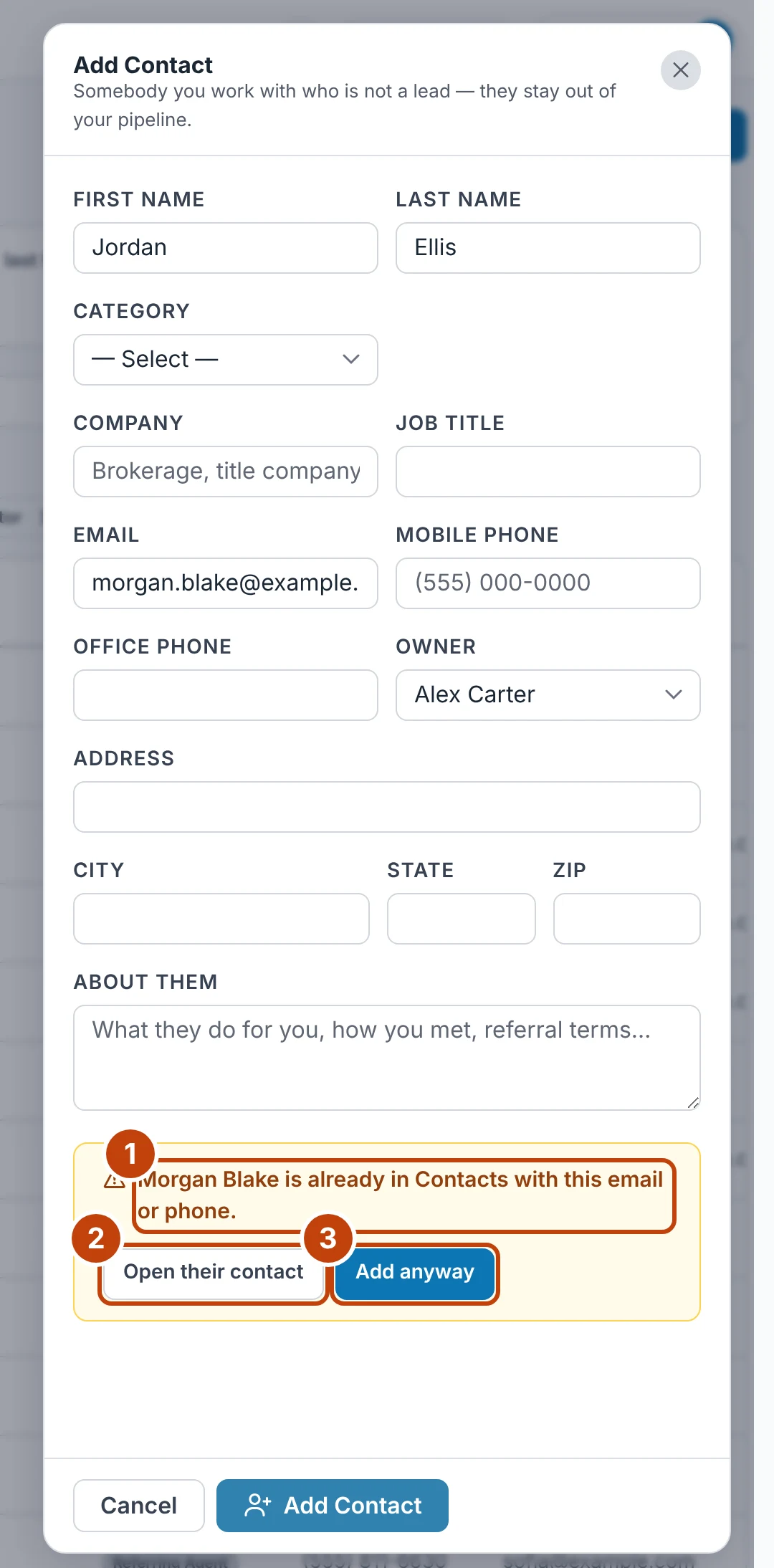
- Who is already in Contacts with that email or phone.
- Open their contact — go to them instead.
- Add anyway — save a second contact.
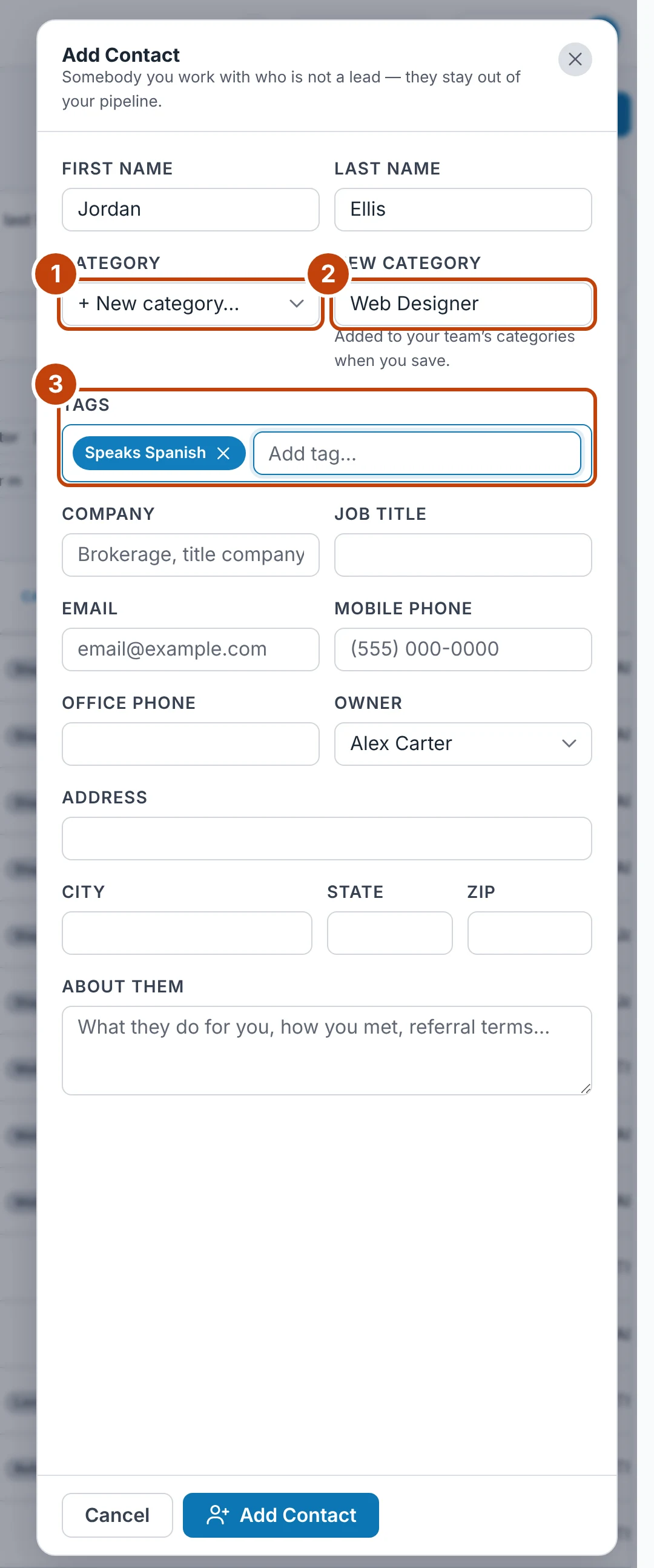
- + New category… — when nothing on the list fits.
- Type it once; it joins your team's categories when you save.
- Tags — the same list as your leads. Type a new one to add it.
A contact's page
Click a name to open the contact. The page is laid out like a lead's: Email, Call, Edit and Archive along the top, and their details on the left, which stay on screen while you scroll on a computer. Leads Referred lists every lead that names them, with its stage. Notes work exactly as on a lead, and never change any lead's last-contacted date.
The arrows at the top step through the list you opened the contact from. The left and right arrow keys do the same, and so does a sideways swipe on a phone.
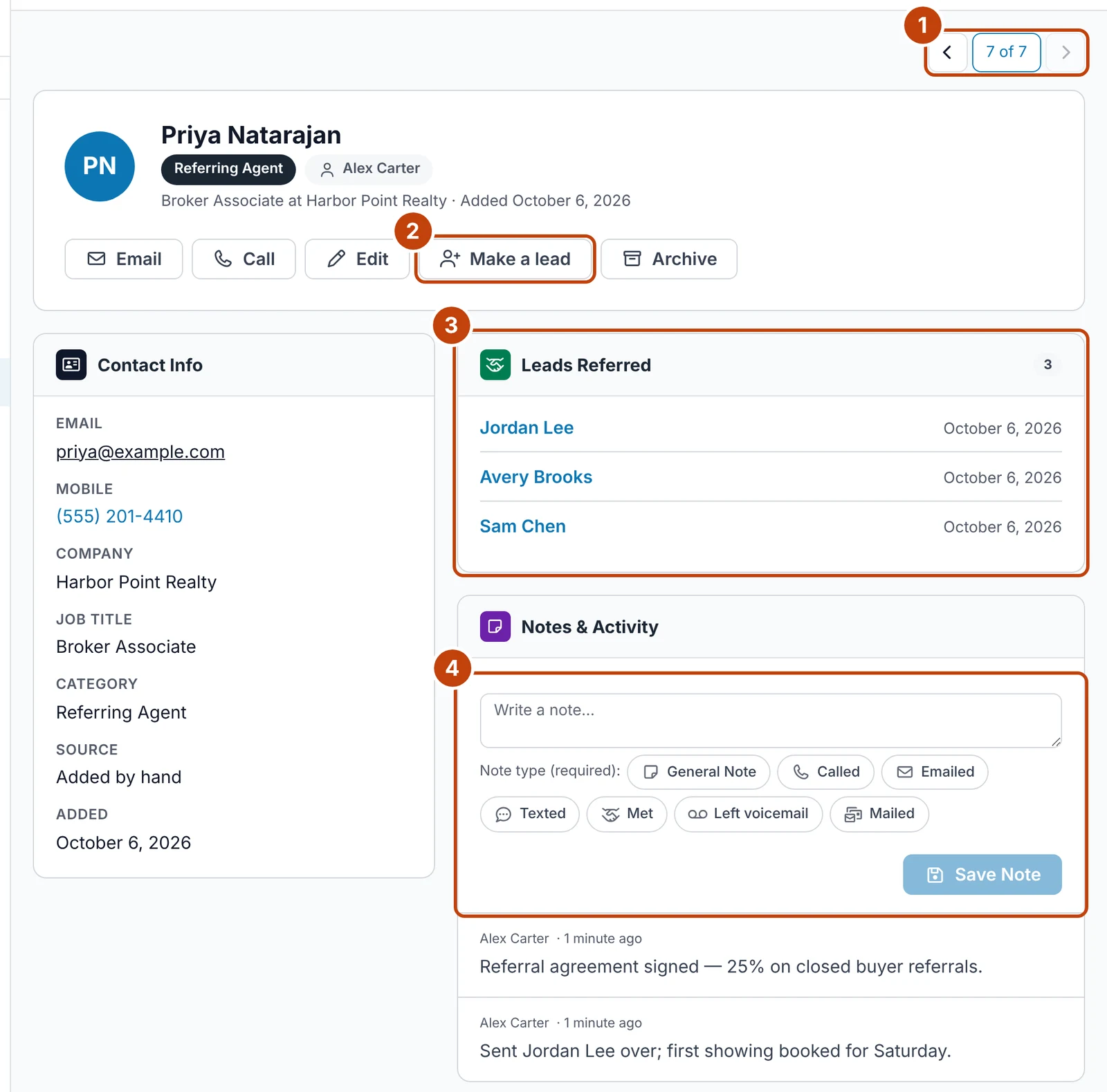
- Previous and next through the list you came from.
- Make a lead — when they become a client themselves.
- Leads Referred — every lead that names them under Referred by.
- Notes — choose the note type, the same as on a lead.
When a contact becomes a client
A title officer who buys a house is still your title officer. Click Make a lead: they get their own lead in your pipeline, assigned to the contact's owner, and they stay in Contacts. The two records are linked — the contact shows Also a lead and the lead shows Also a contact. The button then reads Open their lead.
Tags
A contact can carry any number of tags from your team's one tag list, so a tag like Speaks Spanish means the same on a contact and a lead. Tags show in the contact's Contact Info, and the Filter on the Contacts list narrows it to one tag. Renaming, merging or deleting a tag in CRM Settings › Tags changes it on contacts as well, and the Tags screen shows how many contacts carry each one.
Categories
Anyone adding or editing a contact can create a category with + New category…. Team leads click Categories on the Contacts page to rename, add or remove categories. A category any contact still uses cannot be removed. A category that arrives from a website form or an import is added to the list automatically.
Agents who enquire on your website
Any choice on your I am a list can be set to Adds to Contacts, in GenieCRM › Settings › Lead Types or MLS Genie › Website Forms. Real estate agent is one by default. Somebody who picks it on a website form is added to Contacts instead of becoming a lead — as a Referring Agent, or in the category the choice is named after, such as Lender — or matched to the contact you already have. You are still emailed about the message straight away, and what they asked is saved on their contact.
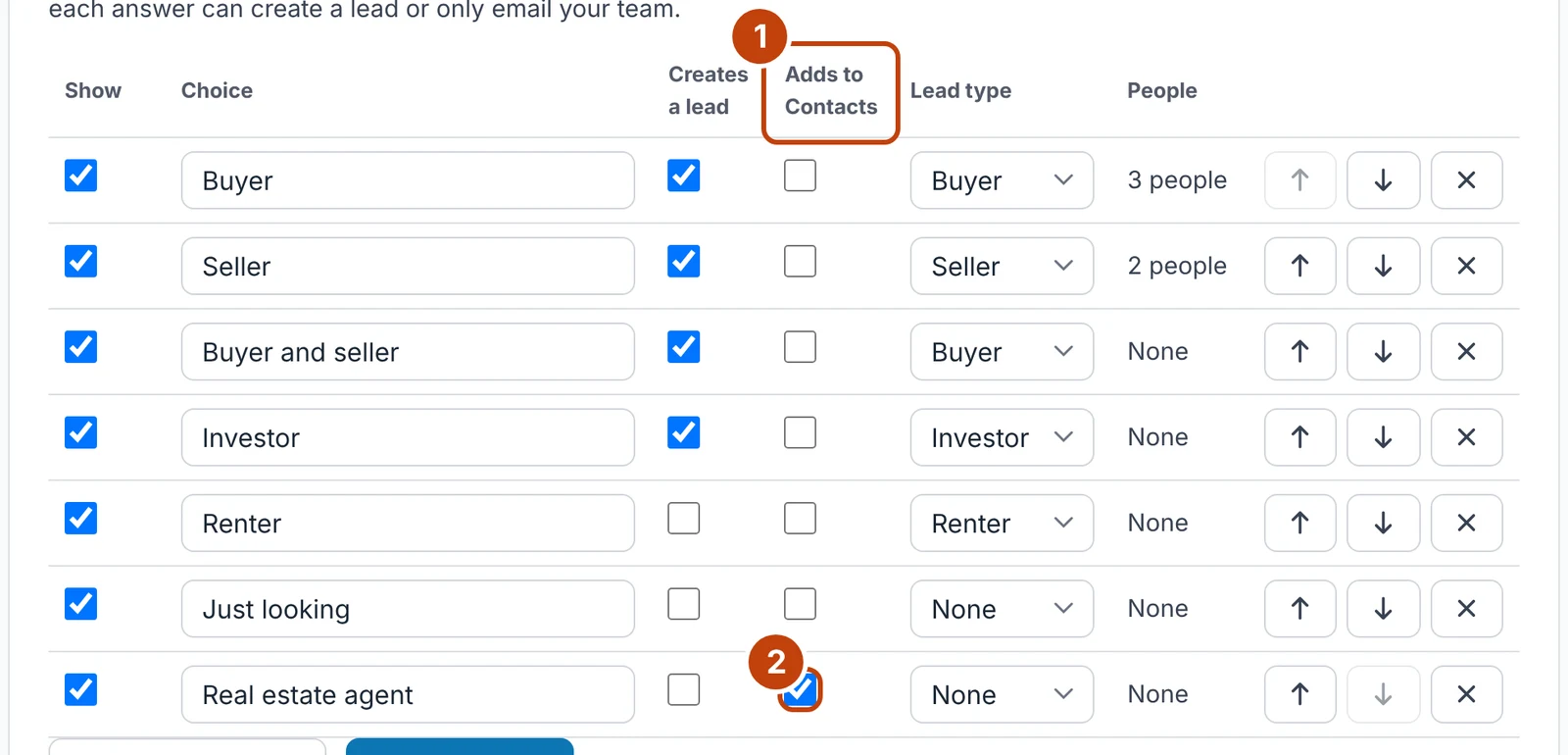
- Adds to Contacts — a choice ticked here files the person in Contacts. It cannot also create a lead.
- Real estate agent comes set this way.
On a Houzez site, choosing agent on a property enquiry does the same, and the buyer and seller answers on that form set the lead's type.
Archiving
Contacts are never deleted. Archive moves a contact to the Archived tab, where Restore brings them back exactly as they were. If a lead linked to a contact is merged, the link moves to the lead that is kept; if the lead is deleted, the contact stays and only the link is cleared.
Who sees what
Contacts are your team's shared address book. Everybody whose user level has Contacts in CRM Settings › Permissions sees every contact — marketing and transaction coordinators included. Lead sharing and the Team View / My View switch do not apply here.
Anybody who can see a contact can email, call and add notes; each note shows who wrote it. Editing and archiving are for the contact's owner, team leads and managers — and for everybody, on a contact owned by the team.
A contact page lists the referred leads you can open, and says how many more are with other agents. Referred by on a lead offers every contact to every agent.
When a team member is removed or their account is deleted, their contacts stay, owned by the team, until a team lead gives them to someone.