The Client Alert builder
Everything happens on one page. Open Marketing › Client Alerts › New Alert, or click Create alert on a lead. Choose the client, set the search, and every matching home appears on the map and in a grid below it with its photo, price and details.
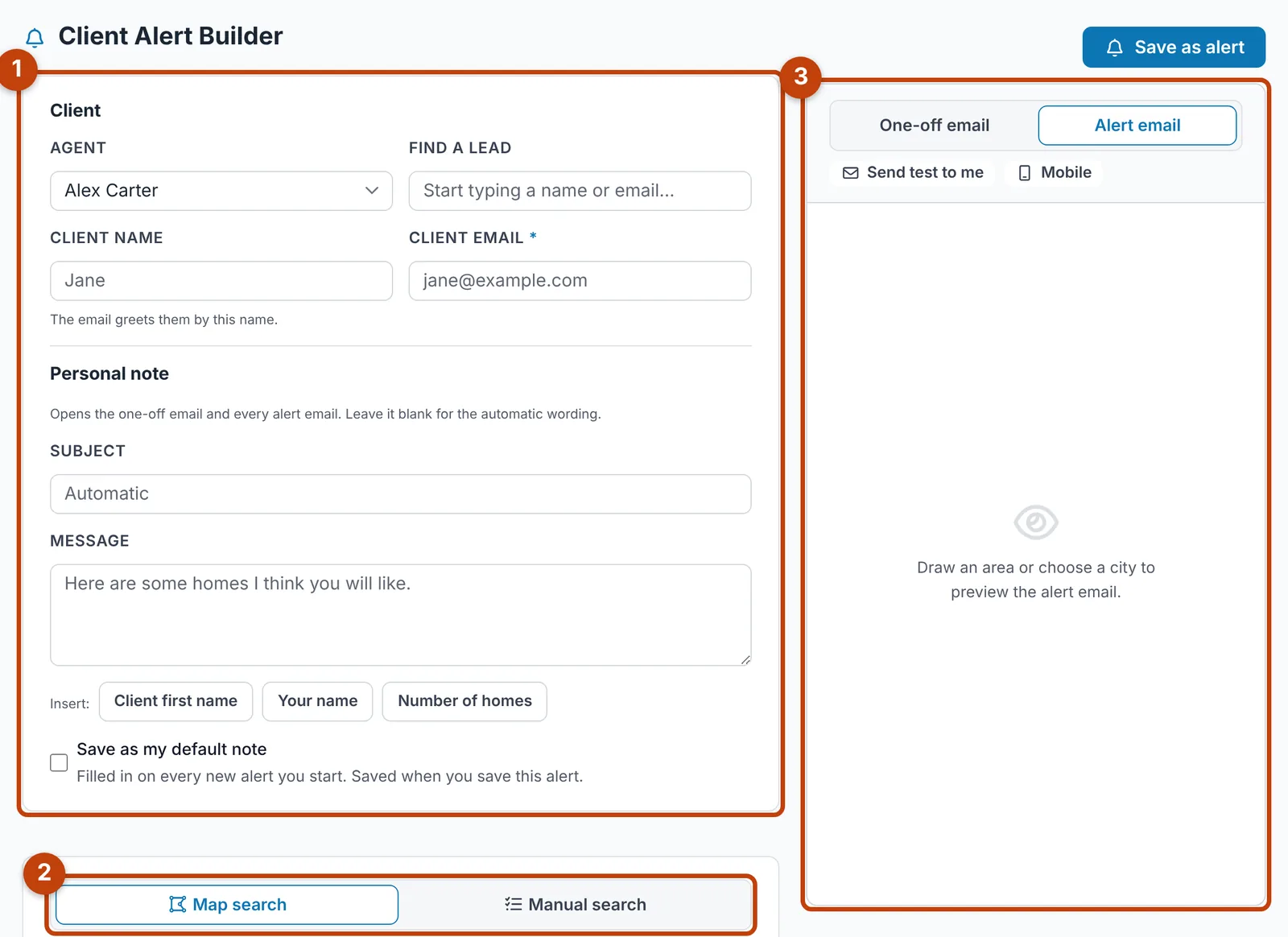
- Client — the agent, the lead, and your personal note.
- Map search or Manual search — where the alert looks.
- Preview — the email exactly as the client will receive it.
Choosing the location
Use the Map search tab and the Draw menu on the map to outline an area — a polygon, a circle or freehand. It is the same map as Live MLS Search, with Map and Satellite views and pins coloured by status. Only homes inside it are included. Use the Manual search tab to search by place instead, with the same fields as Live MLS Search: City, MLS Area Major, MLS Area Minor / Neighborhood and Postal Code. Suggestions appear as you type, and several values in one field widen the search; the map stays hidden there until you click Show on map. Only the tab you are on decides where the search looks. An alert has to be limited to a drawn area or at least one city, MLS area or postal code before it can be saved.
Your personal note
The Personal note in the Client card is your own subject line and message. It opens the one-off email and every alert email, and the preview shows it as you type. Leave it blank and the email uses the automatic wording. Use the Insert buttons to add the client's first name, your name or the number of homes; each email fills them in. Tick Save as my default note and it is filled in on every new alert you start. Choosing a lead fills Client name with their first name, which is how the email greets them.
Filters
The filters are laid out exactly as in Live MLS Search, so they work the way you already know: Status, Property Type and Property Sub Type, then price, square feet, bedrooms, bathrooms, garage and Land Area — the smallest and largest lot, in acres or square feet with the switch beside the boxes. Ticking a status narrows the types and sub types to the ones your listings actually hold. A new alert starts on Active, Residential and Single Family Residence.
Under More Filters, Days on Market limits the search to homes listed in the last few days, or to homes that have been on the market a long time, and Keyword matches the listing description, such as lake view. Sort the results by newest or by price.
Sending homes once
Click a home, or its pin on the map, to tick it, then click Send. The email opens with your personal note. Only the ticked homes go, in one email, and nothing is scheduled. You can send up to 25 homes at a time, and the send is noted on the lead. To include a home outside the search, use Add by MLS # and search by MLS number or address.
Previewing the email
The preview beside the builder shows the email exactly as the client will receive it. The preview is for looking only, so its links do not open. Switch between the One-off email and the Alert email, check the mobile view, and use Send test to me to see it in your own inbox.
Saving an automated alert
Choose how often to email the client — as it happens, a daily digest at 8 AM, a weekly digest on Monday at 8 AM, a monthly digest on the 1st at 8 AM, or paused — then click Save as alert. Each alert sends new homes that match the search, and can also report price drops and homes coming back on the market. An as-it-happens alert holds anything that lists overnight until 8 AM. When a digest finds more new homes than one email shows, it ends with a See all new homes button that opens every match, plus price drops, on your site — no login needed.
Drawn searches in the email
When the search was drawn on the map, the Your search box in each email says so plainly and shows a small map of the area, outlined in your brand colour. The map needs the Static Maps service turned on for your Google Maps key; without it the email shows the wording on its own.
Tracking the visits these emails bring
Every link to your site in an alert or one-off email carries tracking tags, so the visits show in your analytics under source email and medium client-alert, with the campaign scheduled-alert or one-off. Unsubscribe and preference links are never tagged.
Managing alerts
The Client Alerts page lists every alert. Pause, send now, edit or delete from there or from the lead. Editing any alert opens it in the builder with its area and filters restored. Each alert shows when it was last checked, how many homes that check reported — new matches, homes still for sale and price changes — and on the lead how many matches were listed in the last 7 days, the same count the client sees in their portal. Deleting an alert is recorded on the client's activity, with who deleted it.
Households
When a client's spouse, partner or family member is a lead of their own and linked under Related Contacts, the two share as a household. Each alert set up on one of them also reaches the other, as their own email with their own unsubscribe link, and only if they have agreed to email. Unsubscribing stops the emails for that person alone. Both see the household's alerts in their portal. A deal on either of them shows on both leads' Deals tabs, marked as shared with the other. It is one deal, so a change made from either lead is the same change, and it is counted once in your pipeline totals. Both follow it in their portal and can each sign its documents. Turn sharing on or off with the switch on each related contact; business partners, assistants and executors start with it off.
On a household member's lead, Notes & Activity also shows the notes on the others' leads, marked with whose lead they are on, and buttons to show everyone or one person. Tick Only and the person's name when writing a note to keep it to that lead. The Email button offers Send to household, which sends each person their own copy.
In the portal, each person sees the household's saved homes and saved searches, marked with who saved them, with each person's rating and note; only your own can be removed, rated or changed. They also share one conversation with your team on My Contact: each message shows who wrote it, and your messages to one of them read “To” that person. Each message stays on the lead it was written to, so email notices and unread counts are still per person. Open house, nearby activity, blog article, price drop and market report emails reach everyone in the household the same way alerts do, each with their own unsubscribe.
From Live MLS Search
After a search in Live MLS Search, click Create client alert. The builder opens with your filters and any drawn area carried over.
Searches clients save on your website
When a signed-in client saves a search on your website, it becomes a Client Alert automatically — with the towns, areas, home types, price range and bedroom and bathroom minimums they chose — and they get your branded email with new matching homes each day. A search with no town set covers every matching home on your site. The alert is signed by the client's agent, or by your default agent for new leads if they have none.
Clients see these, and every search an agent sets up for them, under Alerts & Updates in their portal, as one list in which every search works the same way: how often, See matches, Edit, Pause and Stop. Pausing or changing one takes effect on the alert itself; stopping one ends the emails for that client only, and the alert stays on file in GenieCRM™, and See all matches opens every home the search matches. Deleting the saved search on the website removes it too. Your website theme's own saved-search and notification emails are switched off, so clients never receive two versions.

