Start from a template
Open Campaigns and click New campaign. Pick a layout — Just listed, Market update, Newsletter, Open house or Blank — then change the words. You can switch to another template later from Templates at the top; Undo brings your blocks back.
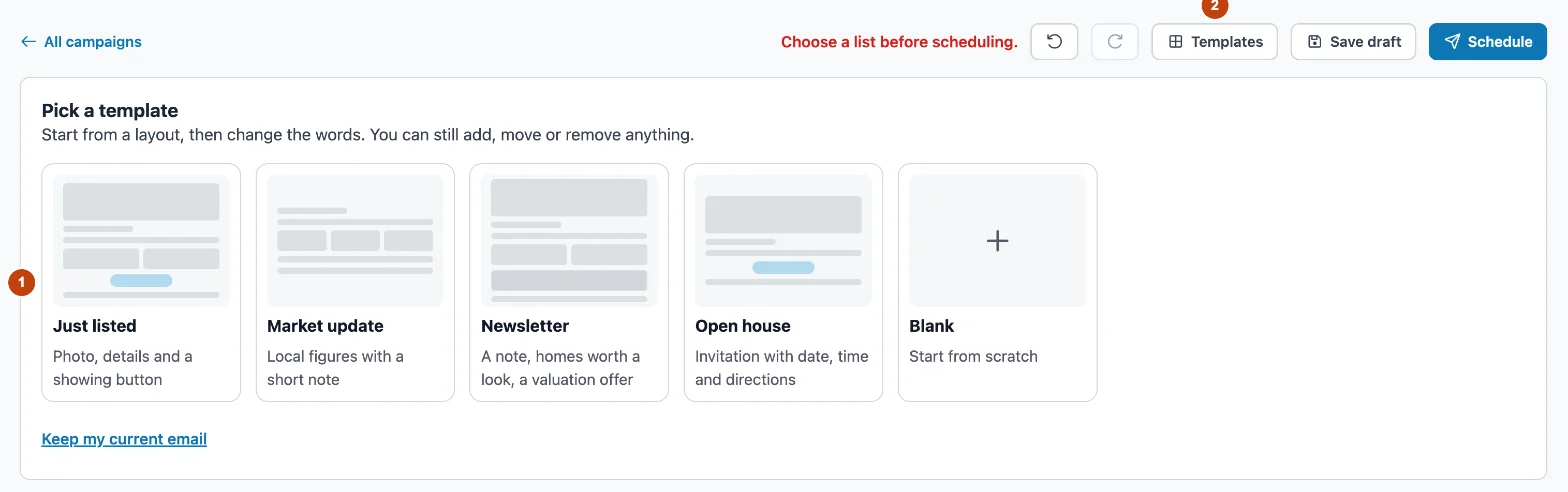
- Pick a layout to start from.
- Templates — switch layouts later.
Editing in the preview
The panel on the left has four tabs: Campaign for the name, subject line, list and schedule, Add block for new blocks — click a tile to add it, or drag it to the spot in the email where it should go — Block for the settings of the block you have selected, and Design for the look of the whole email — background, width, font and link colour. Click any block in the preview on the right to select it. Click text to type straight into it, and select words to make them bold, italic, a list or a link. Use the bar above a selected block to move it up or down, drag it, duplicate it or delete it. You can also drag blocks into a new order in the list of blocks under the Block tab.
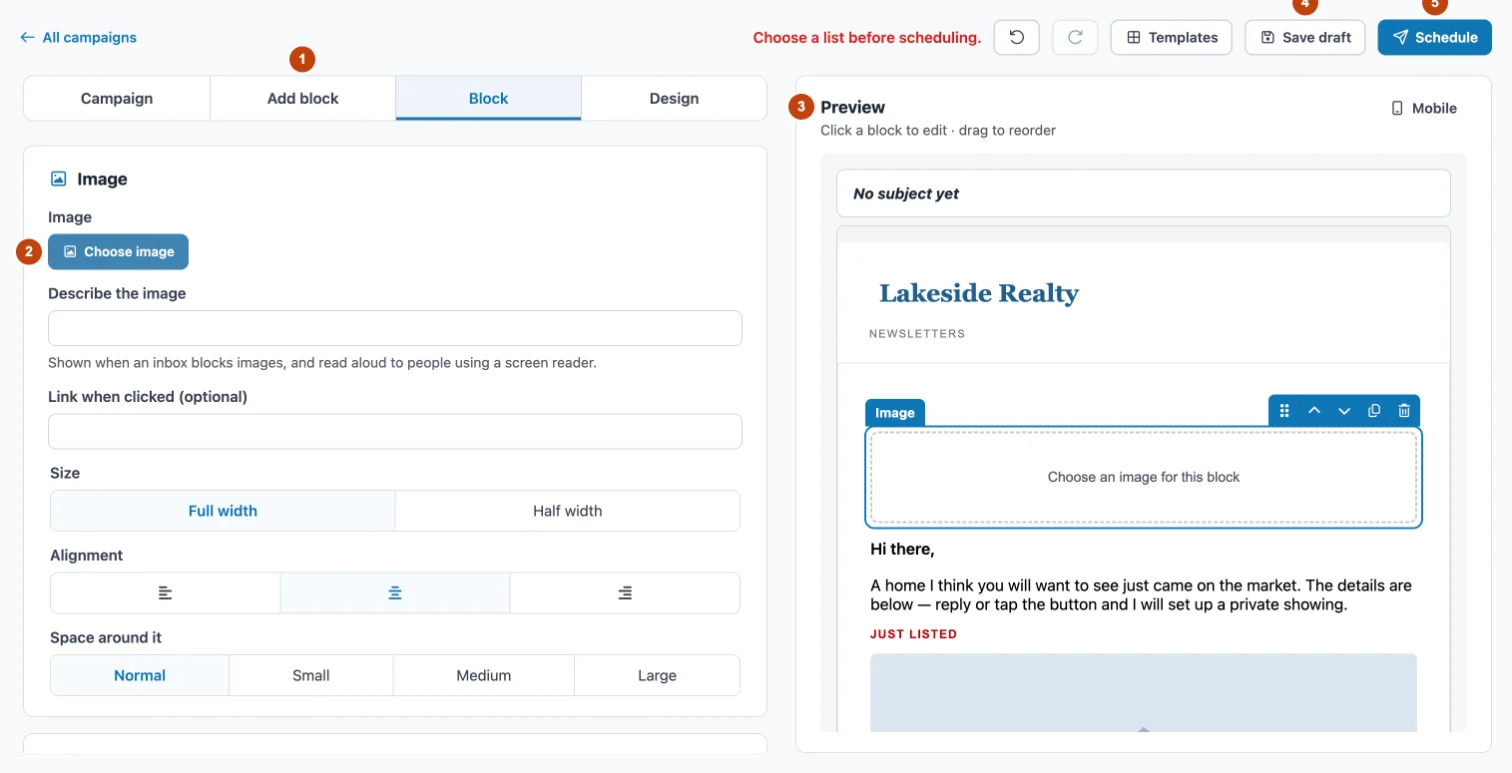
- The four tabs: Campaign, Add block, Block and Design.
- Settings for the selected block.
- The live preview — click a block to edit it.
- Save draft.
- Schedule once a list is chosen.
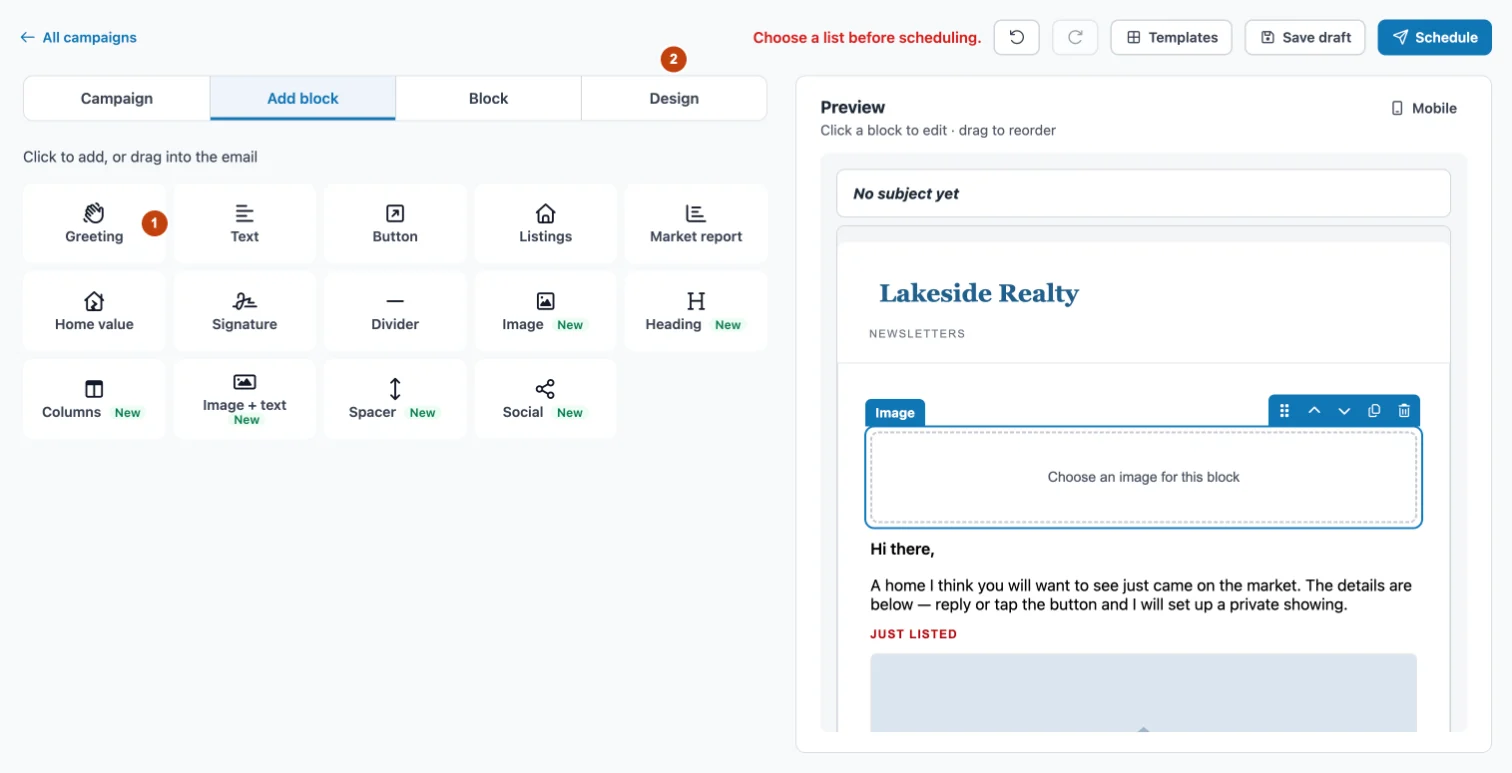
- Click a tile to add a block, or drag it into the email.
- Design — the look of the whole email.
Images and buttons
Add an Image block to upload a photo or choose one from your Media Library. Describe the image — many inboxes hide pictures until the reader allows them, and the description shows until they do. Buttons, images, text and home value blocks can be aligned left, center or right, and a button can take any colour, an outline style, square or rounded corners, and four sizes.
Layout blocks
Heading adds a title in three sizes. Columns puts two things side by side — as boxes for figures such as a median price, or as plain text — and Image + text sets a photo beside a heading, a few lines and an optional button, with the photo on either side. Both sit one above the other on a phone. Spacer adds breathing room, and Social links to your profiles. On Text and Heading blocks, Insert a merge field adds the reader's first name, their city, the agent's name or the month where you are typing.
Write it for me
On a Text block, type a few words about what it should say and click Write. Shorter and Friendlier rework the text that is already there. Read what it writes before you send.
Fair Housing check
Every word in the email — subject, text, headings, button labels and image descriptions — is checked as you type. A flagged phrase appears above the panel tabs; click it to jump to its block, or use the suggested wording to replace it in place.
On a phone
Use the Editor and Preview tabs at the bottom of the screen. Tap text in the preview to type, or tap any other block to open its settings.