A short video walks through all of this. Press Watch how deals work at the top of a client's Deals card to play it over the page, with captions. The button pulses until you have watched it.
Escrow steps
Each deal on a client's Deals card has an Escrow steps section. When the deal moves to Under Contract, the steps from accepted offer to closing are added on their own: offer accepted, escrow opened, earnest money, disclosures, inspection and its contingency, appraisal and its contingency, loan approval, final walk-through, signing, commission instructions and closing. On a deal that is not under contract yet, click Start escrow steps.
- Tick a step when it is done. The day and who did it are shown under it.
- Give a step a date and it is also a task on the deal owner's list, with reminders and calendar sync. Finishing either the step or the task finishes both, and moving the date on either moves both. A step past its date is marked late.
- The eye shows or hides a step from the client. Commission instructions start hidden.
- The pencil renames a step, the bin removes it with its task, and Add step adds your own, just before closing.
- The Closing step keeps the deal's closing date when you change it on the deal.
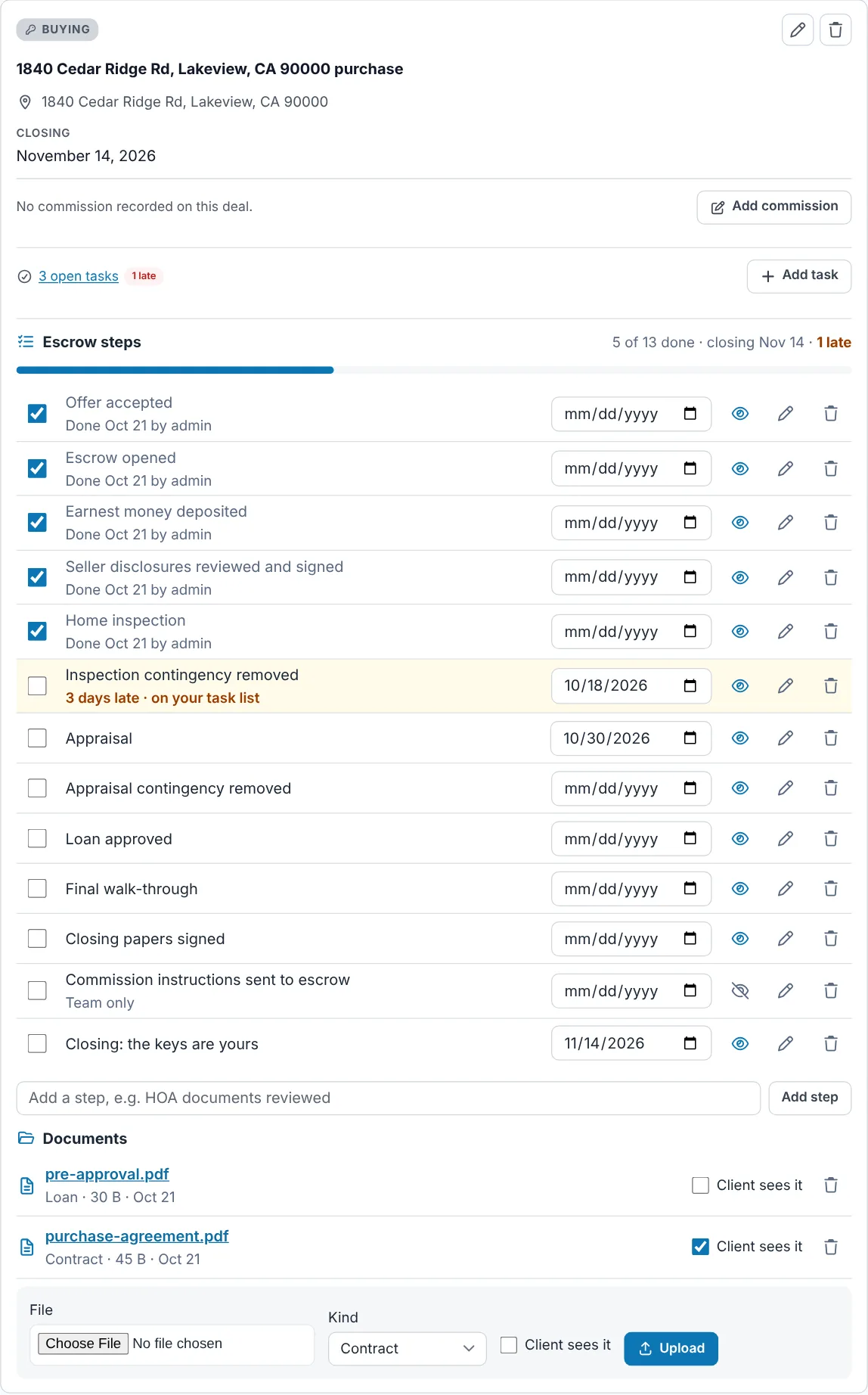
- Escrow steps — how many are done, the closing date and how many are late.
- Tick a step done; its date sits beside it and puts it on your task list.
- Team only — a step the client does not see. The eye switches it.
- Documents — open, share with the client or remove.
- Upload — choose the file, its kind, and whether the client sees it.
Documents
Upload contracts, addenda, disclosures, reports and letters to the deal they belong to: PDF, Word, Excel, text files and images, up to 25 MB each. Tick Client sees it to share one with the client and their household; untick it to stop sharing. Documents the client sends from their portal are marked From client, and you are told by push and email.
Every file is encrypted on the server and can only be opened by your team and, when shared, the client. Each upload, share, download and removal is recorded with who did it and when, and the list shows when the client last opened each document.
What your client sees
The client follows the deal on My Deal in their portal: the closing date and days to go, how many steps are done, what comes next, every step you share with its date, and the shared documents. They get a push and a notice in their portal when a step they can see is done or a document is shared. See GeniePortal › GeniePortal overview.
Making a deal from a note
If the escrow details are already written in a note — often an email pasted in whole — you do not need to type them again. Notes that read like escrow details (a price, dates and a closing) have a Make this a deal button. Ask Genie reads the note and lays the deal out for you to check:
- Save it to — a new deal, or one of the client's open deals. A deal for the same address is chosen for you; if you pick one for a different address, you are told.
- The address, sale price, list price, closing date and commission, each with the words in the note it came from beneath it.
- Every step with its date. Steps dated in the past are ticked done; untick any that were not. A date still to come goes on your task list; a date already gone does not, so a sale entered late does not fill your list with overdue tasks. A cash purchase leaves out the appraisal and loan steps.
- People on this deal — the escrow and title officers, lender, the agent on the other side and the company preparing the natural hazard disclosure (NHD) report. Each is added to Contacts, or found there if they already are, and linked to the deal. Your own team is never listed.
- Worth a second look — anything missing, unclear or contradictory, such as a closing date before the contract date.
Change anything that is wrong, then press Create deal. Nothing is saved before that, the note itself is never changed, and nobody is emailed or sent a notification.
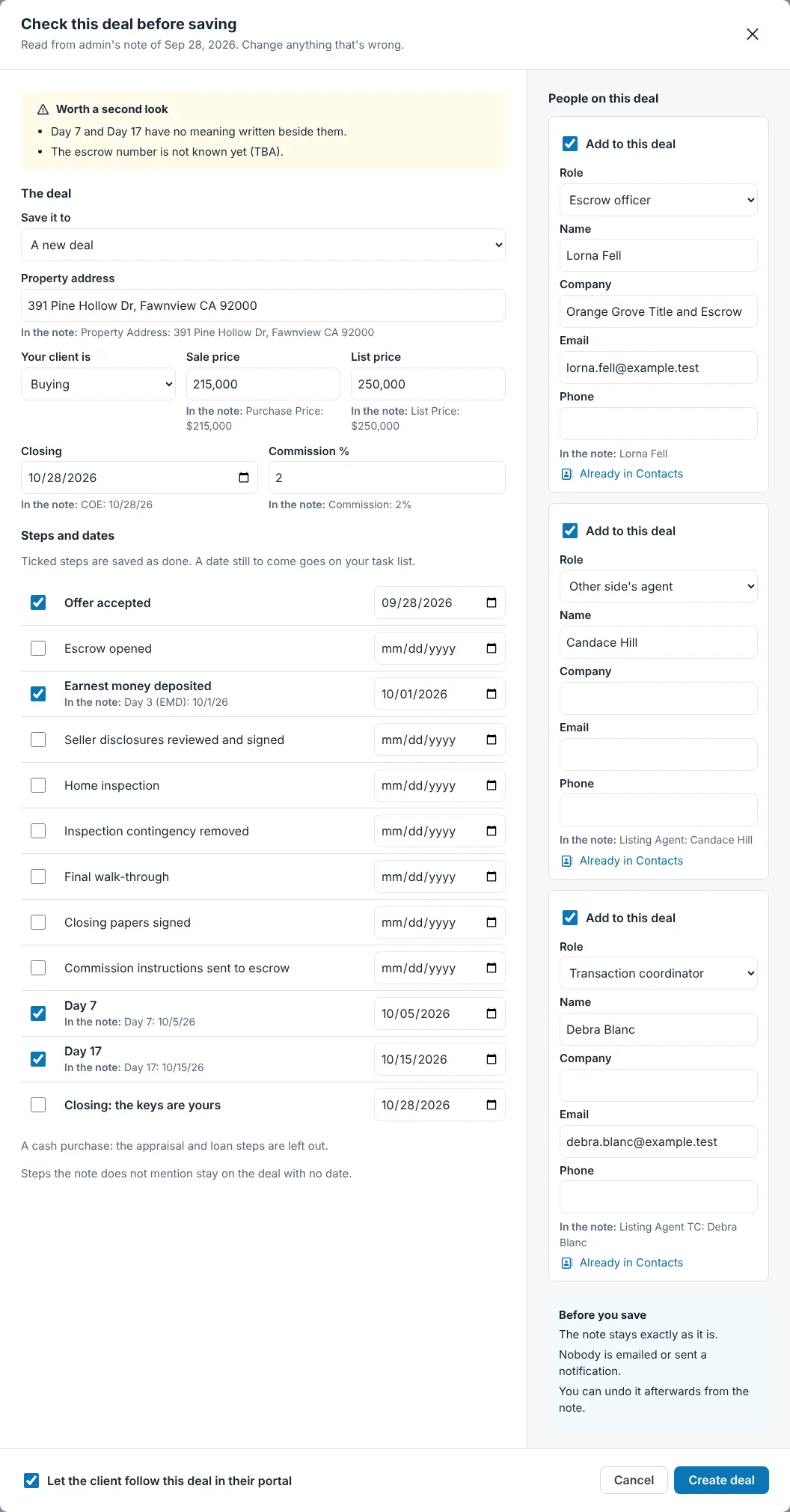
- Worth a second look — what to check before saving.
- Save it to — a new deal or one already open.
- Each value with the words in the note it came from.
- Steps with their dates; past ones ticked done.
- People found in, or added to, Contacts.
- Let the client follow this deal in their portal — untick to keep it to your team for now.
Undo
Right after saving, the message at the top of the screen has an Undo button. Later, the note shows A deal was made from this note with Remove what this note created. Either takes back exactly what the note added: a new deal is removed with its steps, their tasks and its documents; a deal that was already there gets back what it held before. Contacts it added are archived when nothing else uses them.
Keeping a deal from the client until you are ready
Untick Let the client follow this deal in their portal and the deal stays with your team: the client does not see it on My Deal and is told nothing about it. The deal shows Your client can't see this deal yet with a Share with client button for when you are ready.
Under contract, with nothing tracking the escrow
When a client is Under Contract and has no open deal with a closing date, the top of their Deals card asks Track the escrow?. If one of their notes has escrow details it offers Make the deal from the note; otherwise it starts a deal by hand. Not now puts it away on that client for a week, for you only. Moving a client to Under Contract on the pipeline board offers the same, and the daily deal report lists any client still under contract with no escrow details.
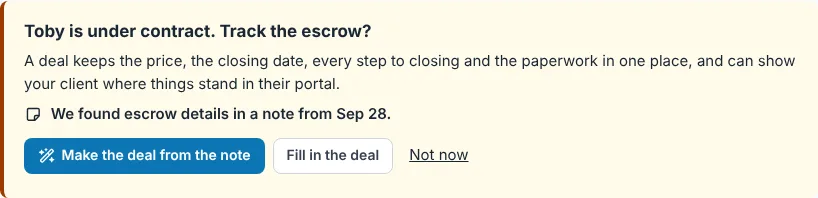
- Make the deal from the note — opens the check above.
- Fill in the deal or Start a blank deal — by hand.
- Not now — asks again in a week.
The tour
The first time you open a deal with escrow steps, a four-stop tour shows the steps, ticking and dating them, documents, and sending for signature. Take the tour beside the steps shows it again.
Turning notices off
Each agent chooses email and push for A client adds a document to their deal in their notification settings.