What GeniePortal™ is
GeniePortal™ is the client-facing side of your platform. Every lead has a portal account — created automatically when the lead is added — and visitors can also sign up on your site themselves. The portal is a personal dashboard: saved searches, saved properties, a listing alerts view, private chat with their agent, and a profile, all on your own domain and under your brand.
Your listings stay open to everyone. Nobody has to sign up to search or view a home; the portal is what a visitor gets for choosing to.
The portal's pages
Every page shows the client's photo or initials, name and email at the top of the menu, and their name in the browser tab — for example Heidi's Favorites. Each page has its own address under the portal, such as /my-dashboard/favorites/ or /my-dashboard/alerts/; the client's name is never part of an address. Links in emails sent before these addresses still open the right page.
- Dashboard — new matches, favorites and searches at a glance, your contact details and what is coming up.
- Favorite Properties — every home they, or someone in their household, saved. Each person can rate their own saved homes Love it, Maybe or Not for us, add a note, and sort by their rating. The household sees each other's ratings and notes, and you see them all in the Saved homes card on the lead.
- Request a tour — on any saved home, or with the Request a Tour element on a listing page, a client offers up to three times. You get a push and an email, and a showing task to answer it. On the lead, under Tour requests, tap one of their times to confirm it, or tell them none work. A confirmed tour shows under Coming up in their portal with directions and Add to calendar, and on your calendar if it is connected. Afterwards the client says how it went, and their answer comes to you in the conversation.
- Alerts & Updates — every home search they have, whether an agent set it up, a household member shared it or they saved it themselves, all in one list that works the same way for each: how often, See matches, Edit (price and rooms, or the name of a search they saved), Pause and Stop; then any market reports, newsletters or open house updates they signed up for.
- My Home — with Property Intelligence™ on, what the client's home is worth: the GenieAVM™ estimate and range, how much it has moved since last month, a chart of the past year, and how many nearby sales it rests on. Clients add the home they own themselves, or you add it on the lead. Each home is valued again every month, and clients who chose home value updates get an email with the new figure, from you. What could I sell for? sends you a message, a push and an email, and puts a follow-up task on your list for that day.
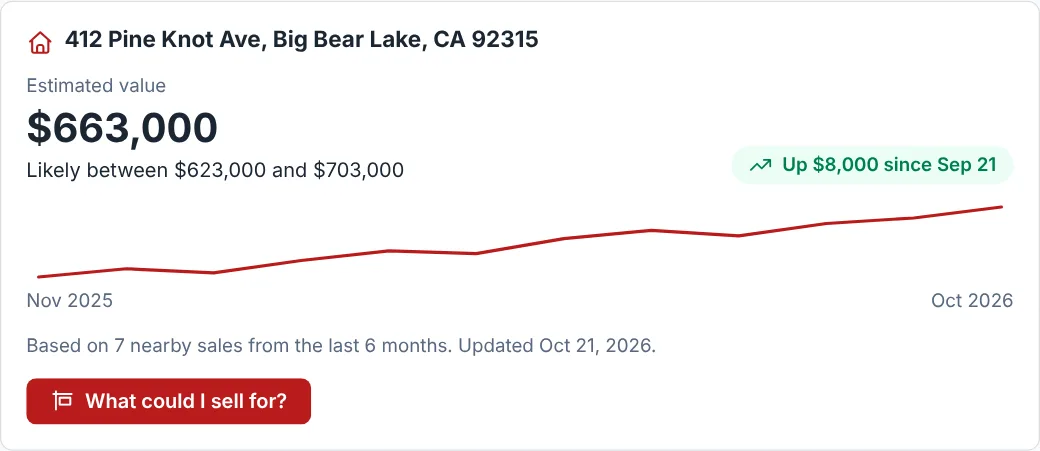
Sample data. - The estimate and the range it likely falls in.
- The change since about a month ago.
- The past year, month by month.
- What could I sell for? — asks you, with no obligation.
- My Deal — shown once a client has a deal with escrow steps or shared documents: the closing date and days to go, how far along it is, what comes next, each step you share, and the documents. Clients send you documents from here too. See GenieCRM › Escrow steps and deal documents.
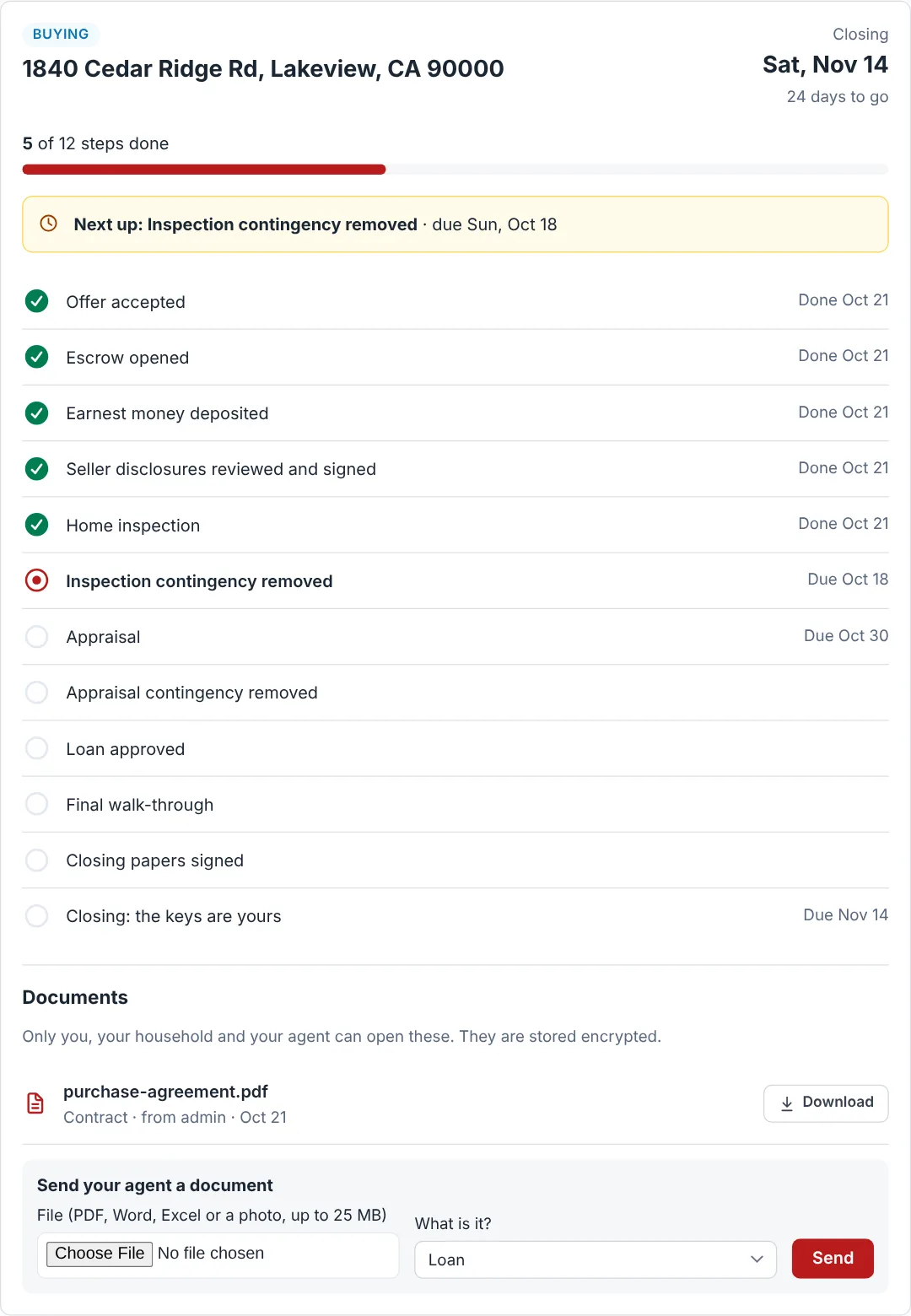
Sample data. - The closing date and days to go.
- How many steps are done, and what comes next.
- Each step you share, with its date.
- Documents — shared files, and the ones the client sent.
- Send your agent a document — reaches you by push and email.
- My Contact — messages with your team, anything you have asked them to do, and a link to their alerts.
- My Profile — their details, photo and email and text choices.
One record, two views
A portal user is the same record as the lead in GenieCRM™. When a client saves a property or runs a search in the portal, that activity flows into the lead profile your agents see — so the agent always has full context without asking the client to repeat themselves.
Saving homes and searches from your website
Wherever the portal is on, every property card and listing page carries a heart, and the search bar can carry a Save Search button. A heart saves the home to the client’s portal; Save Search saves the search and emails new matches. A visitor who is not signed in is asked to sign up or sign in first. See GenieBuilder › What visitors see when they search for a picture of each.

