Suggestions while typing
As soon as a visitor has typed three characters into the keyword box of a Half-Map Search or a Search Bar, a list opens under it with loading rows, then fills with matching homes and places. Anything typed before comes back instantly. Arrow keys move through the list, Enter opens the highlighted row and Esc closes it.
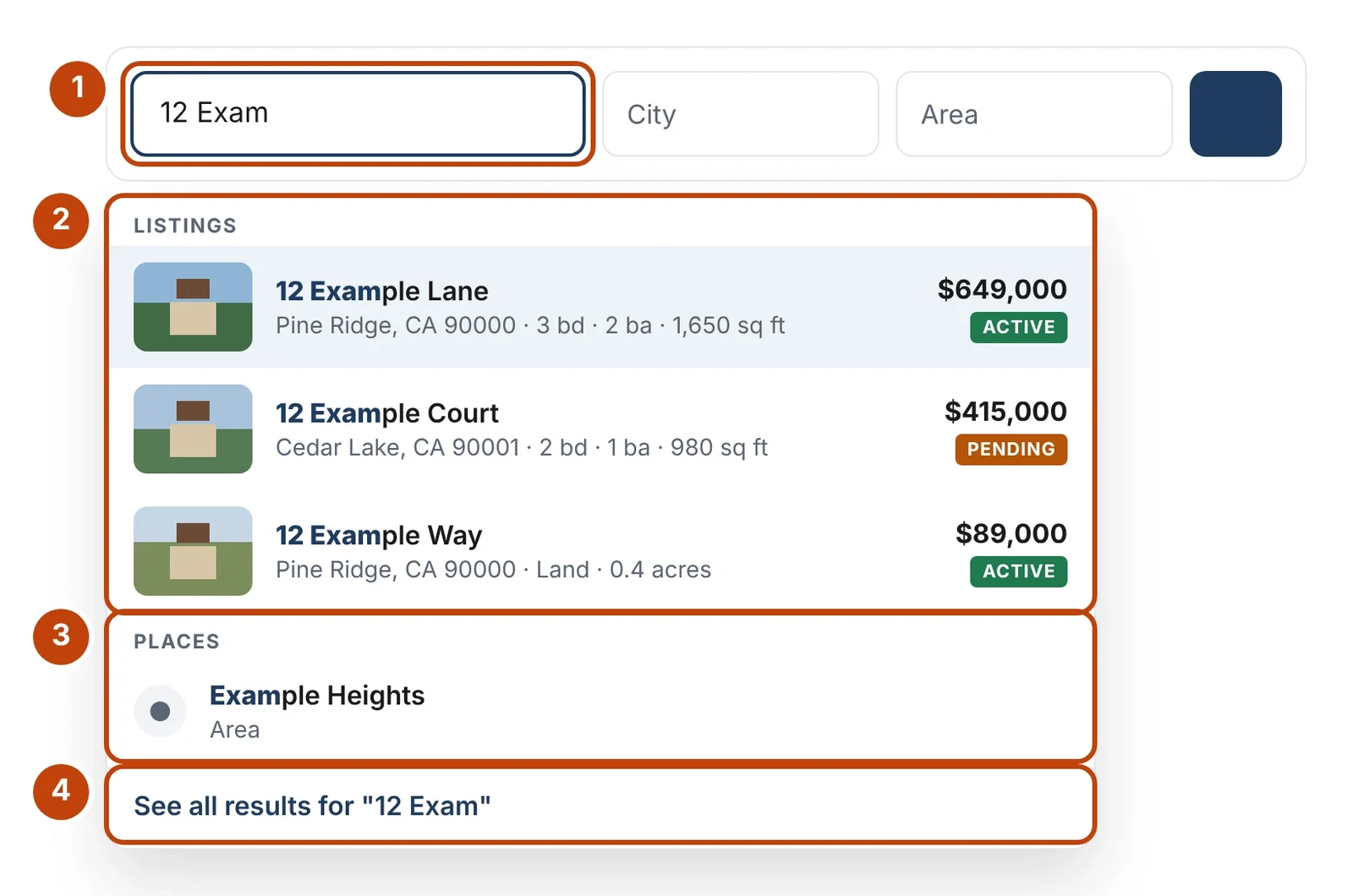
- What the visitor typed — the matching part is highlighted in every row.
- Listings — up to five matching homes with photo, address, price and status. Choosing one opens its page.
- Places — matching cities and areas. Choosing one sets that filter and searches.
- See all results — searches with exactly what was typed.
Suggestions only ever show homes the search itself would show — the same statuses and property types. They are on by default; turn them off on an element with Suggestions While Typing (Half-Map Search: Content › Search Filters; Search Bar: Content › Fields). On phones the price moves under the address.
Filters keep the area in view
On a Half-Map Search, filters such as beds, baths, price and property type search the area the visitor is looking at: the part of the map they zoomed to, or the shape they drew. The map stays where it is.
A new place is different. Typing an address or keyword, or choosing a city, area or ZIP, searches the whole market for it and moves the map there, lifting any drawn shape. If nothing in the area matches, the message offers Search all areas to run the same filters everywhere.
The Filters pop-up
The Filters button opens every filter at once, in two columns that line up row by row. It sits above everything on the page while open.
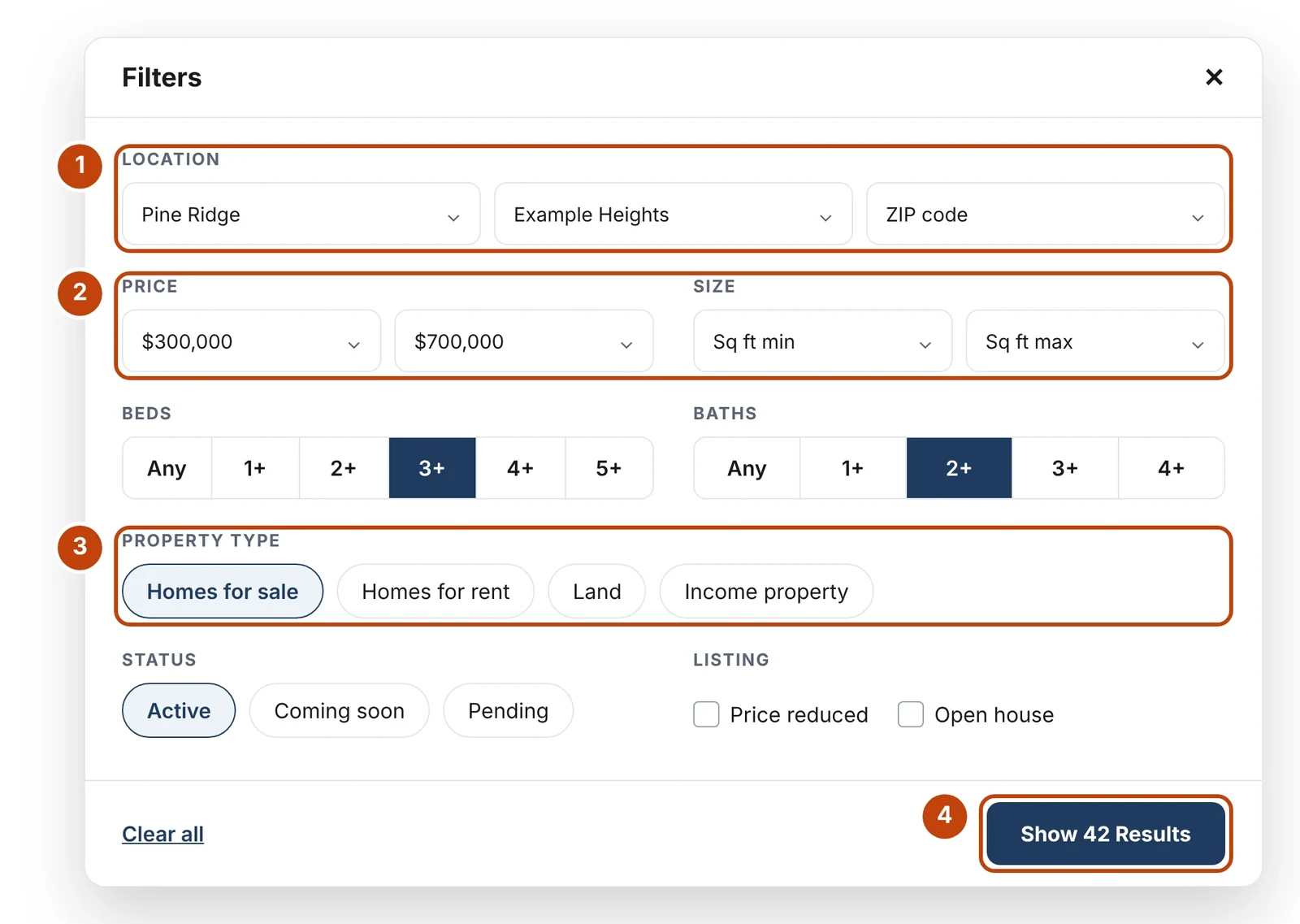
- Location — city, area and ZIP code on one row. Choosing a city leaves only that city’s areas and ZIP codes in the other two lists.
- Paired filters sit side by side at the same height: Price with Size, Beds with Baths, Garage with Year built, Lot size with Time on market.
- Property type and Home type take the full width; a visitor can pick several.
- Show results counts the homes before the visitor closes the pop-up.
On phones it becomes one column: the fields inside a section sit close together, and each section keeps its full space so the groups stay easy to tell apart.
The map and results
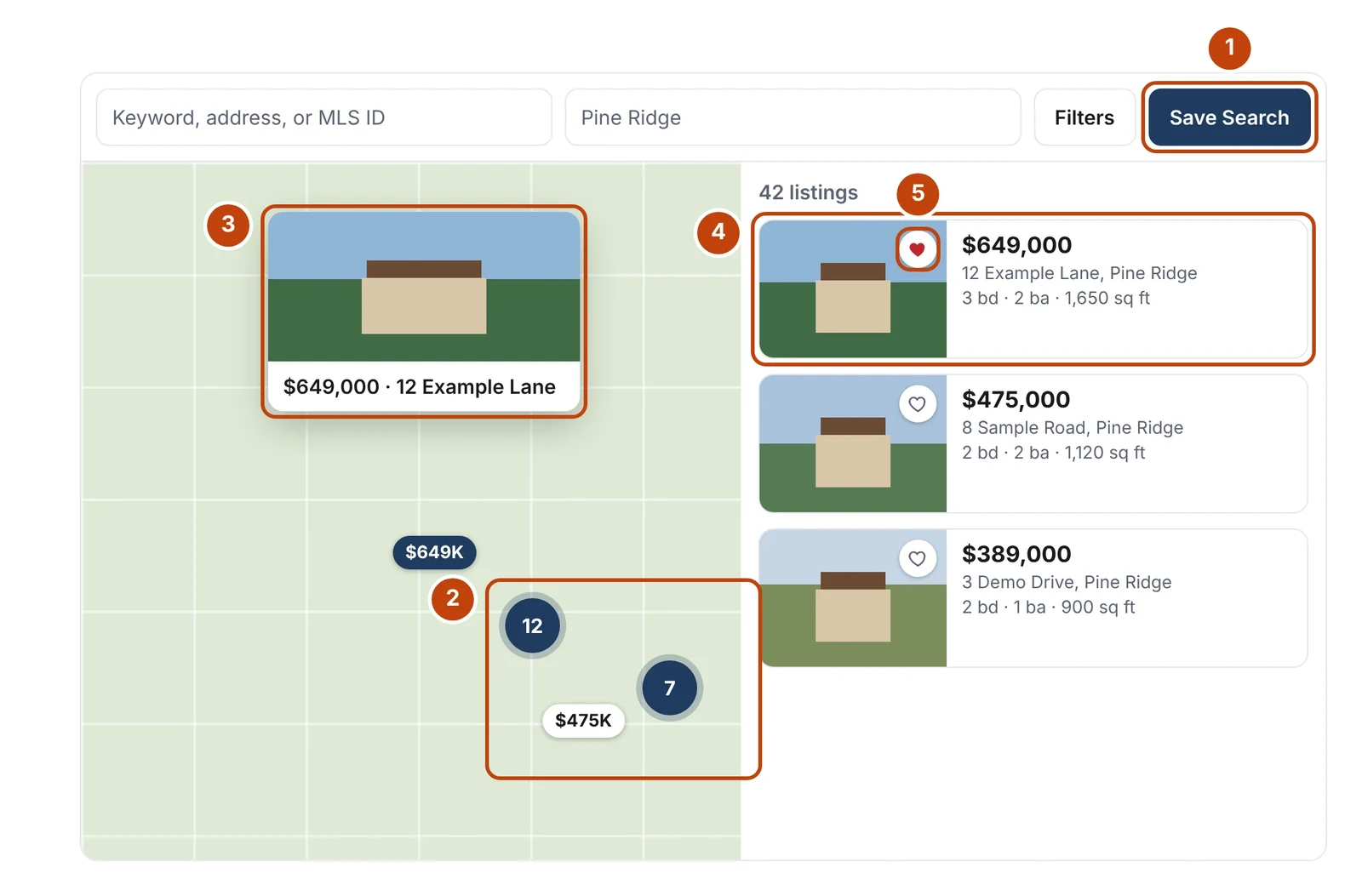
- Save Search — saves the search and emails new matches to the visitor.
- Every home is on the map. Pins group into numbers that never overlap, and regroup smoothly when the zoom settles.
- A pin’s pop-up. Click or tap the pin again, the map, or press Esc to close it. Resting on a result opens its pop-up and moves the map just enough to show it whole.
- Result cards. Moving the map refreshes them quietly; resizing the screen never reloads them.
- The heart saves the home to the visitor’s client portal.
Saved homes and saved searches need the client portal. A visitor who is not signed in is asked to sign up or sign in first.

