Add the Breadcrumbs element once to a template, a header or a page, and it shows the trail for whatever page it is on. The same trail is given to search engines as structured data.
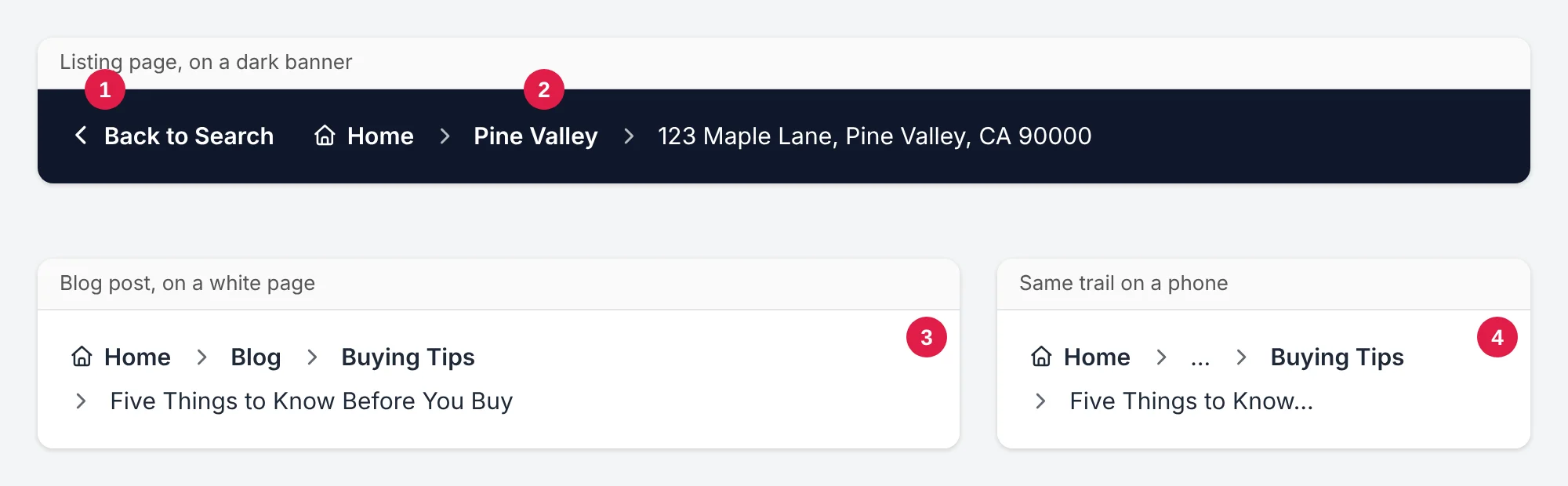
- Back to Search — only on a listing opened from a search.
- Each step links to its page; the last is the page itself.
- Colors follow the text around them: white on a dark banner, dark on a white page.
- On a phone a long trail shortens to Home … and the last two steps.
The trail it builds
- A page — Home › its parent pages › the page.
- A blog post — Home › your blog page › its primary category › the post. The primary category is the one chosen in your SEO plugin, else the post's first.
- A blog category or tag — Home › your blog page › the category.
- A listing — Home › its city › the address. Choose other steps under On Listing Pages › Steps: state, area, property type or your listings page.
- A sold home — Home › Sold Homes › its city › the address.
- A city or area page — Home › Communities › the city or area.
- Agent profiles and other kinds of page — Home › the page you choose for them › the profile.
- Search results — Home › Search: "what they typed". A missing page — Home › Page not found.
The home page shows no trail. Each step is named by your SEO plugin's breadcrumb title when one is set, else the page's title.
Back to Search
On a listing the visitor opened from a search — the map search, a grid of results or a search results page — Back to Search appears and takes them back to that search with their filters. A visitor who came any other way does not see it, unless you set When Not From a Search to link to a page. It is on by default; the switch is under Back to Search in the element.
Changing one page
When editing a page or post in WordPress, the Breadcrumbs box in the sidebar sets Show under this page, a different Name in the trail, or Hide breadcrumbs on this page.
Changing the whole site
In Elementor open Site Settings › MLSGenie™ › Breadcrumbs:
- Communities Page — the page above city and area pages. Left empty, your /communities/ page is used when you have one.
- Other Kinds of Page — for example, agent profiles under your About Us page.
The element's settings
- Home Shows — icon, text or both. Separator — chevron, angle, arrow, slash, line, your own text or any icon.
- This Page — show the page's name, shorten long names to a number of characters, or hide it.
- Shorten on Phones — on a phone a long trail shows Home … then the last two steps. Screen readers still hear every step.
- Style — alignment, spacing, text, links, this page, separator and icons, Home icon, Back to Search and the box around it. Colors start on the text color around the element, so the trail reads on a dark banner or a white page without changes.
Without Elementor
The shortcode [mlsg_breadcrumbs] prints the same trail. Options: home="both|icon|text", separator="chevron|slash|text", separator_text="›", current="show|hide|truncate", max="40", collapse="yes", back="yes|no".

