Click the element on the page, and its settings open in the panel on the left in three tabs: Content, Style and Advanced.
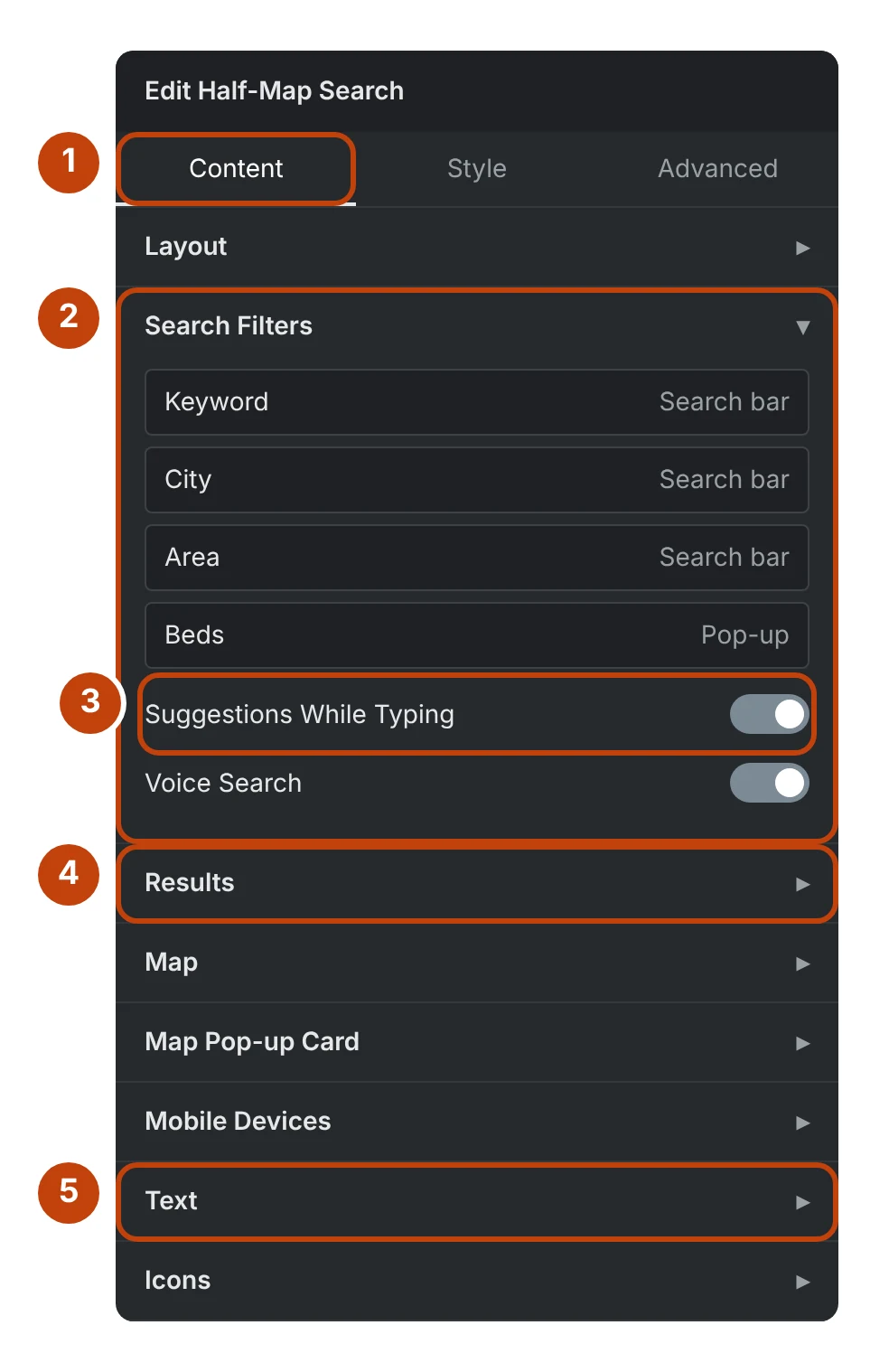
- Content holds what the element shows; Style how it looks.
- Search Filters — every filter, where it shows (the search bar or the Filters pop-up), its label and control.
- Suggestions While Typing — matching homes and places under the keyword box. On by default.
- Results — Statuses Shown, Property Types Shown, cards and paging; Results Bar — the count, sorts, Share and the list / grid switch.
- Text — every word the element prints.
Content tab
- Page Preset — a whole layout in one choice: map on the right or left with search across the top, search in the results panel, or a wide results list. It fills in search placement, map side, panel width and columns, and each can still be changed afterwards.
- Layout — where the search sits, map side, panel width, locking the height to the screen, and hiding the site footer and the bar above the header on tablets and phones.
- Search Filters — which filters show, in what order, each one’s label, control and width, and whether it sits in the search bar or the Filters pop-up; Voice Search; and Suggestions While Typing, which shows matching homes and places under the keyword box. Leave Out of the Pop-up removes any filter from the pop-up; Property Type Names renames a property type (one per line: the type, a bar, then its name, such as
ResidentialLease|Homes for rent). - Results — Statuses Shown and Property Types Shown (empty follows Site Settings › MLSGenie™), list or grid to start, columns, card width and gap, results per page, and what each card shows.
- Results Bar — the row above the results: show or hide the listing count, the sort menu (with the sorts offered and the starting sort), Share and the list / grid switch. A hidden count is still read out to screen readers, and phones always leave it out because the Filters pop-up shows it.
- Map — where the map opens, Map or Satellite, Draw, Layers, and Search This Area.
- Map Pop-up Card — the card that opens from a map pin: width, space above the pin, hover delay, fade time and which fields it shows.
- Mobile Devices — how the list and map share a phone screen.
- Text — every word the element prints: result count, no results, sort label, Share, Search this area, the Filters, Clear and Search buttons, the pop-up’s title, Clear all and Show results (use %s for the number, as in Show %s homes).
- Icons — every icon, including More Filters, Clear Filters, Search and each pop-up group heading.
Style tab
- Search Bar — the bar’s background, padding, the line below it and shadow; how the filters lay out (row alignment, vertical alignment, space between fields and rows) and the minimum filter width.
- Search Fields — colours for every field (background, text, border, corners, microphone), then labels, fields and tick boxes: type, colours, height, padding, corners and borders; tick boxes such as Price Reduced also have alignment, box size, spacing and normal, hover and checked colours.
- Search Buttons: Layout — buttons right or left of the filters, or on a row of their own above or below; alignment; spacing; height; whether Filters, Clear and Search show an icon, a name or both; hiding Clear.
- Filters Button, Clear Button, Search Button — each button’s type, padding, corners, icon size and spacing, border, and normal and hover colours (Filters also has Active).
- Results Bar — Layout: how the count and tools spread across the bar (start, center, end, space between, around or evenly), vertical alignment, wrapping, and whether the count sits first or last; then the results panel’s background, the bar’s background, padding and the space between its tools; the listing count’s colour and type; the “Sort by” words and the chosen sort’s colour and type; Share’s colour.
- Results Bar: Share Button and Results Bar: List / Grid Buttons — full button styling, with the selected list or grid button styled on its own.
- Page Numbers — the same Layout controls, the line above, padding, and full styling for the page buttons, including the current page.
- Beds, Baths and Size (with the other card sections) — now also sets how the facts spread across the card.
- Map and Map Buttons — the drawn shape and grouped-pin colours, and Search This Area and the phone’s Map / List button.
- Filters Pop-up — width, height, columns for each screen size (Automatic is two on desktops and tablets, one on phones), spacing, padding, corners, background, backdrop and shadow; the title bar; group headings and their icons; chips and tap buttons (normal, hover, selected).
- Filters Pop-up: Footer — the same Layout controls for Clear all and Show results, which comes first, whether Show results fills the row, the footer’s background and padding.
- Filters Pop-up: Show Results Button and Filters Pop-up: Clear All — full button styling.
- Map Layers, the property card sections, the Map Pop-up card sections and Container.
- Every row of buttons — search buttons, results bar, page numbers and the pop-up footer — has the same Layout controls, so they work the same way everywhere.
The Filters pop-up your settings build
Filters set to show in the pop-up, and those in the bar, appear here in two columns, a row at a time. Leave Out of the Pop-up removes any of them; Style › Filters Pop-up sets its look.
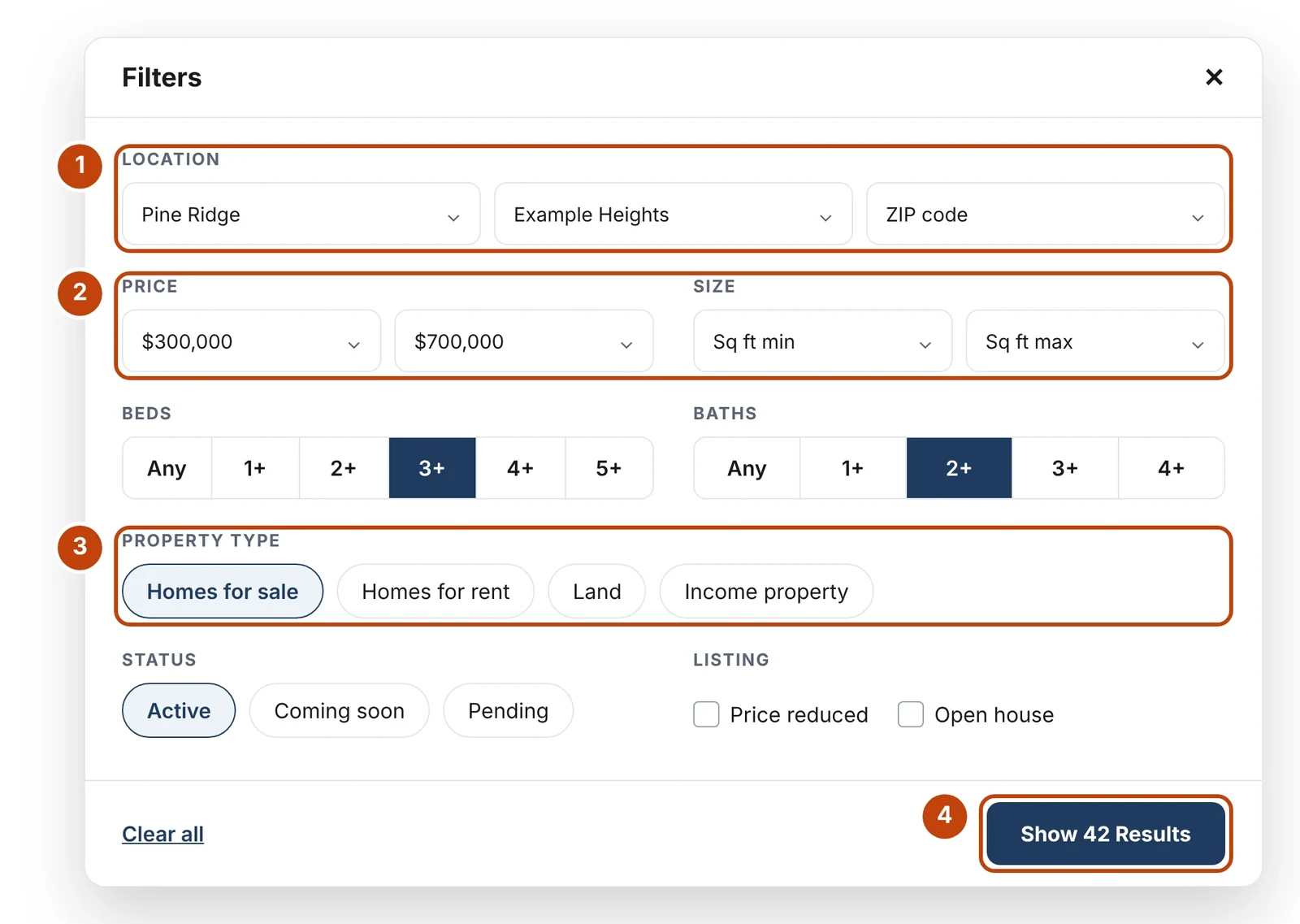
- Location — choosing a city narrows Area and ZIP code to that city.
- Paired filters side by side at one height.
- Property type chips — only the types in Property Types Shown, renamed with Property Type Names.
- Show results — its words come from Text, its look from Style › Filters Pop-up: Show Results Button.
The suggestions under the keyword box
With Suggestions While Typing on, visitors see matching homes and places after three letters. They follow the element's Statuses Shown and Property Types Shown, and use the site's colors.
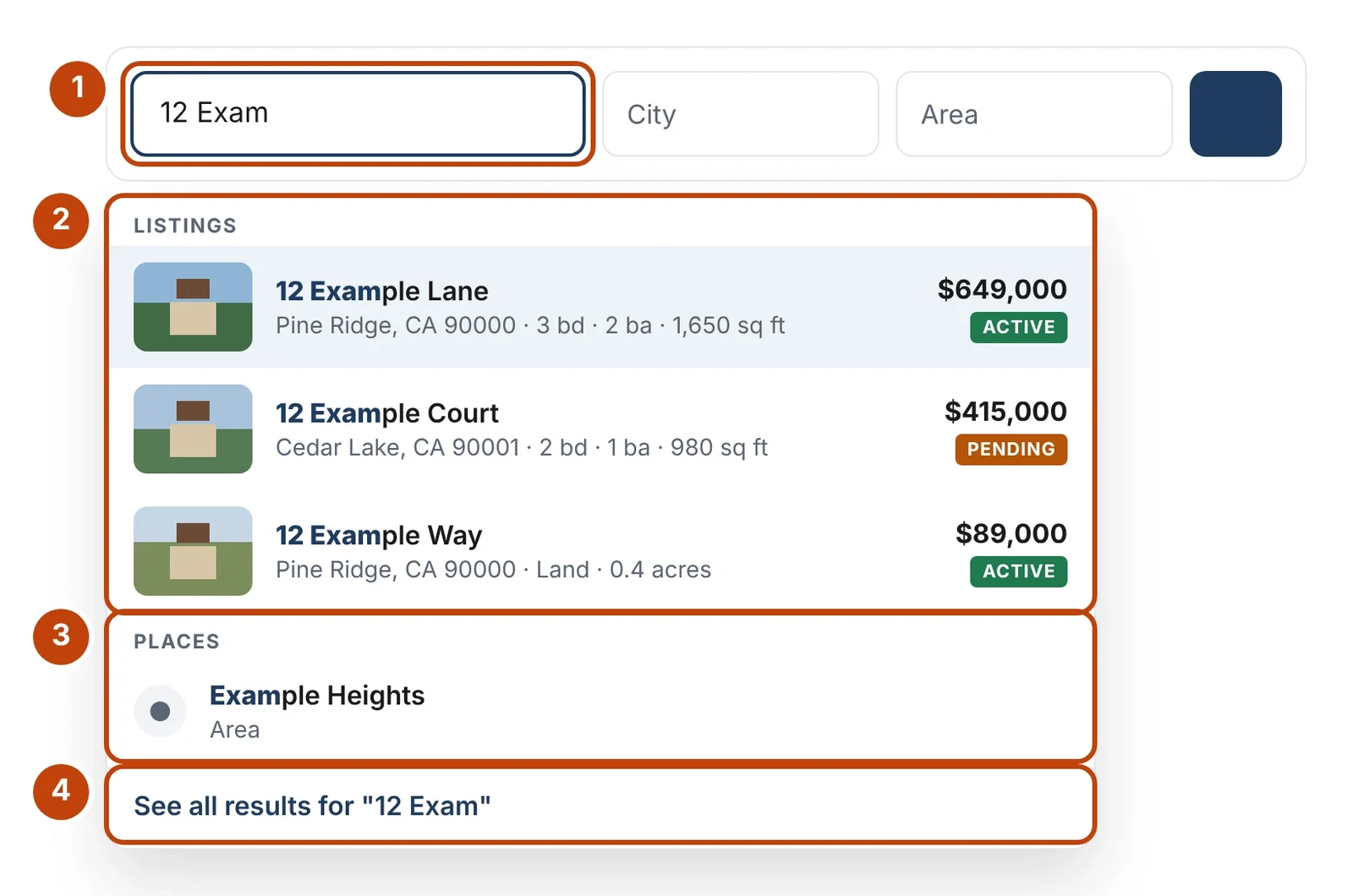
- The keyword box — the first field in Search Filters.
- Matching homes. Choosing one opens its page.
- Matching cities and areas. Choosing one sets that filter.
- See all results — searches with what was typed.
Ask Genie can find it for you
Signed in, open Ask Genie in the Elementor editor, select the element and ask in your own words — it answers with the exact place.

