Property Grid can split its listings into tabs. Each tab shows its own homes, and visitors switch between them without leaving the page.
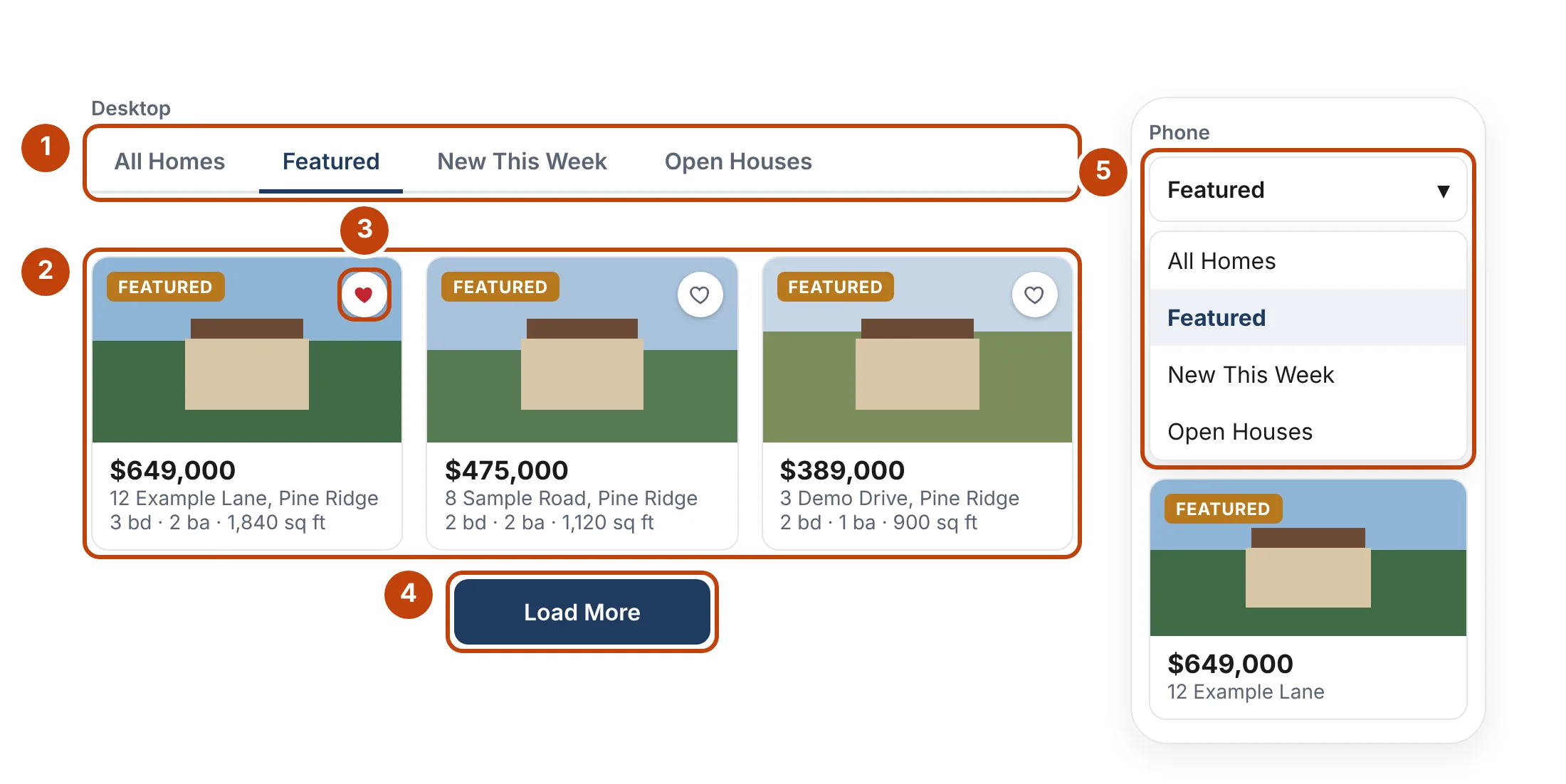
- Tabs — each one shows its own listings. Turn them on under Content › Tabs › Show Tabs.
- The open tab’s homes. Only the first tab loads with the page; each other tab loads the first time it is opened, with grey placeholder cards while it does.
- The heart saves the home to the visitor’s client portal. Turn it on or off with Save Home Heart under Card Fields, and style it under Style › Save Home Heart.
- Load More adds the next homes in the open tab. Change its wording under Content › Text.
- On phones the tabs become a menu.
Setting up tabs
- Click the Property Grid and open Content › Tabs.
- Turn on Show Tabs.
- Add a tab for each set of listings, give it a Tab Name and, if you like, an Icon.
- Under Listings in This Tab, choose what the tab shows: Featured Listings Only, City, Area, Status, Property Type, Listing Agents, Min and Max Price, Min Beds, New Listings Only, Open Houses Only, Price Reduced Only, Luxury Listings Only and Order By.
Anything a tab leaves empty follows the grid’s own Query settings, so a tab only needs the one thing that makes it different. Card fields, columns, listings per page and styling are shared by every tab.
Featured listings without tabs
The Query section has its own Featured Listings Only switch, for a grid that shows nothing but featured homes. Listings by your own agents are featured automatically, and you can feature any other listing with the star in the Listings list.
Styling the tabs
Alignment, under Content › Tabs, places the tabs left, centered, right or across the full row. Style › Tabs sets the tab text, colors for normal, hover and selected tabs, and the line under the selected tab. Style › Tabs Menu (phones) styles the menu phones see.
Wording
Content › Text changes the Load More button and the message shown when nothing matches. Leave either empty to keep the built-in wording.

