What Ask Genie is
Ask Genie is an AI assistant built into GenieCRM and included on every plan. Ask it a question in your own words and it answers from your own site: live market numbers from your MLS feed, the leads you work, and the way the CRM works today. It can also write for you and open a support ticket on your behalf.
What it can help with
- Market numbers — prices, inventory and days on market for any place, now or for any past period. Live market numbers
- Your leads — find a lead or list your latest. Find leads by asking
- Research on the web — schools, local businesses, events, news and anything else that changes, looked up live, with the sources listed under the answer. Writing and research
- Writing — neighborhood guides, area descriptions, social posts and newsletters. Writing and research
- How MLS Genie works — any feature, setting or plan question. Learn the CRM
- WordPress — everyday website questions: pages and posts, the media library, menus, users. Learn the CRM
- RoxxiStudios products — MLS Genie is made by RoxxiStudios. Ask about its other plugins and services, such as GoConsent for cookie consent and privacy, and Ask Genie answers with a link to the product page.
- Support — a ticket opened for you when something needs our team. Get support
Opening it
Click Ask Genie at the top of any CRM screen. On a phone with the sidebar layout it sits in the bottom corner instead; swipe it to the side to tuck it away, and it stays tucked on that phone until you bring it back. With the bottom bar on, it stays in the top bar as the round sparkles button.
On your website, in WordPress admin and in Elementor
The same Ask Genie is also there for you and your team outside the CRM: on your own website while you are signed in, on WordPress admin pages, and in the Elementor editor. Visitors never see it, and while it is there the visitor chat stays out of your way. In Elementor, select an element and ask about it — "how do I change the Show results button?" — and Ask Genie knows which element you mean and answers with the exact tab, section and setting.
Choose where it shows in MLS Genie › Settings › Ask Genie: switch it on or off for WordPress admin, your website and the Elementor editor; show it to everyone who can open GenieCRM or to managers and administrators only; and put its button in the bottom right, the bottom left, or the WordPress toolbar at the top. In GenieCRM it is always there.
To make the text bigger or smaller, use A− and A+ at the top of the chat. Each browser remembers your size.
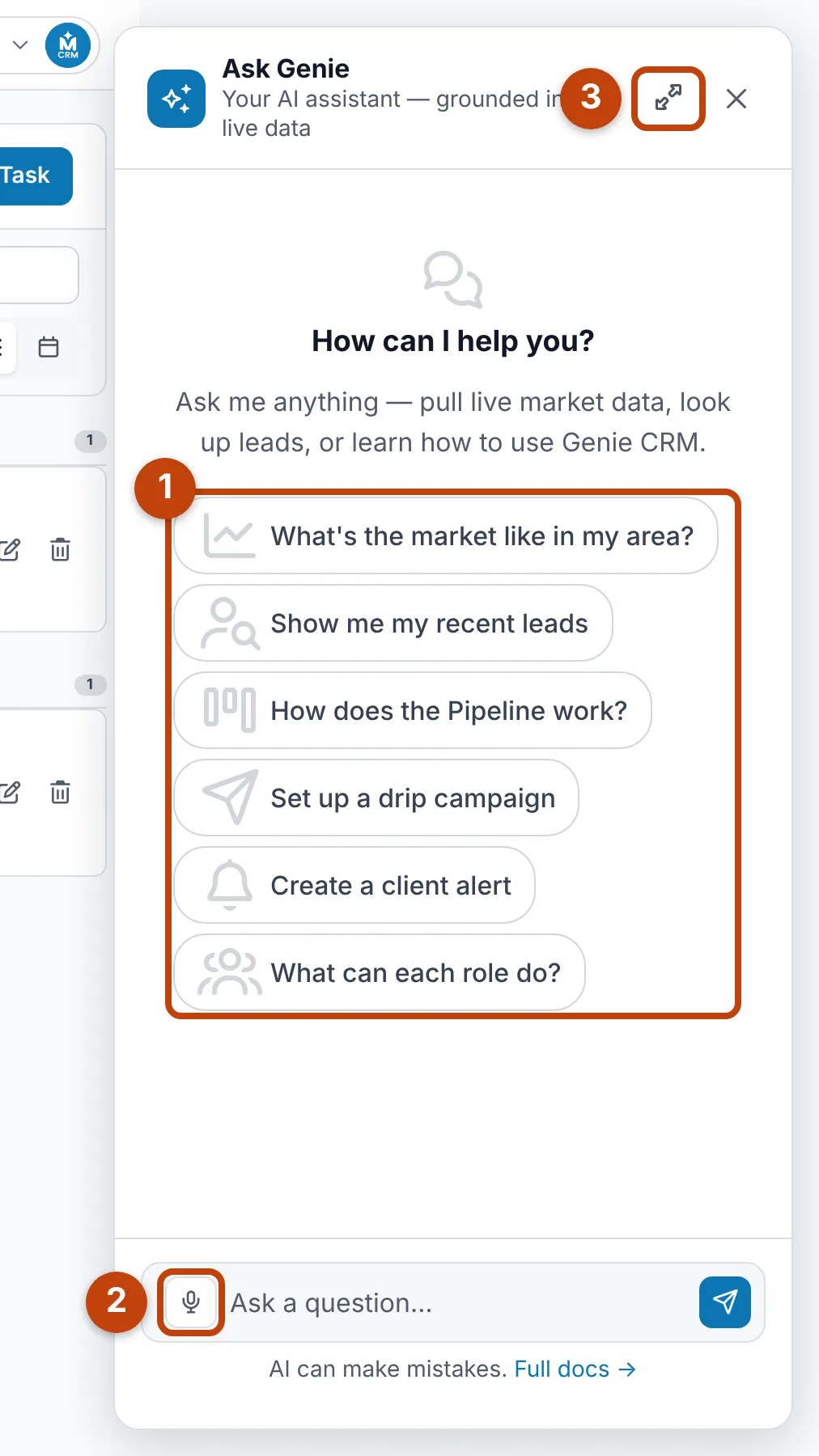
- Suggested questions — tap one to start, or type your own.
- Voice — tap the microphone and speak your question.
- Expand — give the chat the whole window. Your choice is remembered.
It knows the screen you are on
Each question carries a short summary of the screen in front of you — the page, the tab, its headings and the numbers on it. So you can ask "what does this number mean?" or "why is this empty?" without explaining where you are.
Your conversation
The conversation follows you as you move around the CRM in the same browser tab, so you can ask, click through, and carry on. Closing the chat with ✕ asks first, then ends the conversation and clears it. On a phone, Minimise keeps the chat open while you work.
Good to know
- Ask Genie can make mistakes. Check anything important — a number you will quote to a client, or copy you will publish.
- It only shows the leads you are allowed to see. See Find leads by asking.
- Looking up leads needs the Agent plan or above. Everything else on these pages works on every plan.